WooCommerce – MasterCard Gateway
Magento, OpenCart, PrestaShop and WooCommerce
Hosted Checkout – Pay By Link Configuration
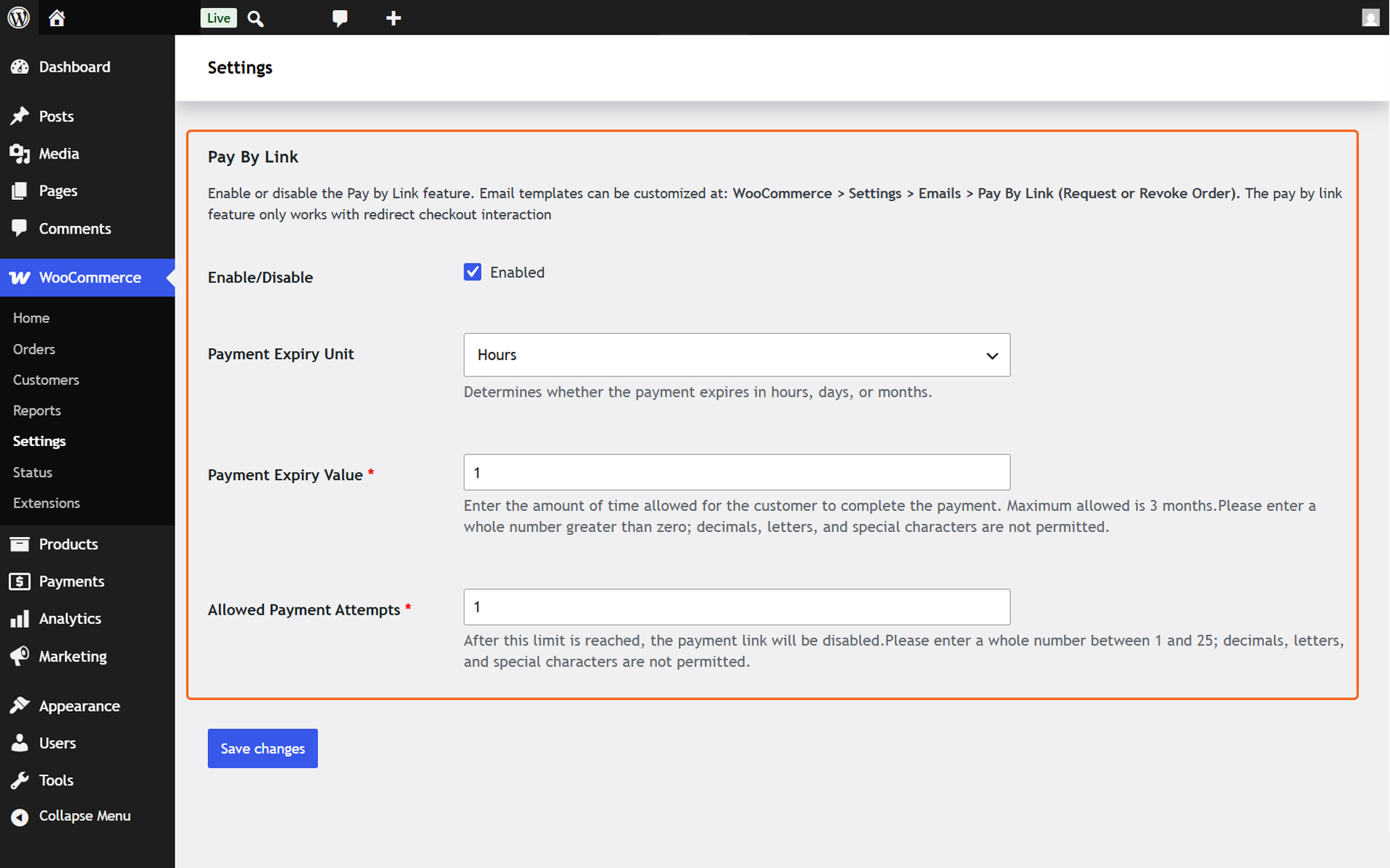
Here’s a detailed breakdown of each field in the Hosted Checkout Pay By Link section. This will help guide you through the setup process.
Prerequisite: Before configuring Pay By Link, please ensure that all necessary Hosted Checkout settings are completed and verified. For help with Hosted Checkout configuration, please click here.
Enable/Disable
Toggle the Enable/Disable checkbox to Enable Hosted Checkout This step activates the configuration needed for this payment option as well as enables the same in the checkout page.
Payment Expiry Value
The numeric duration the link remains active. Must be a whole number greater than 0 (Max duration: 3 months).
Allowed Payment Attempt
The maximum number of times a customer can try to pay before the link is disabled. Must be a whole number between 1 and 25
Email Configuration
Default pay by link emails are configured and will be in effect on enabling pay by link after plugin installation.
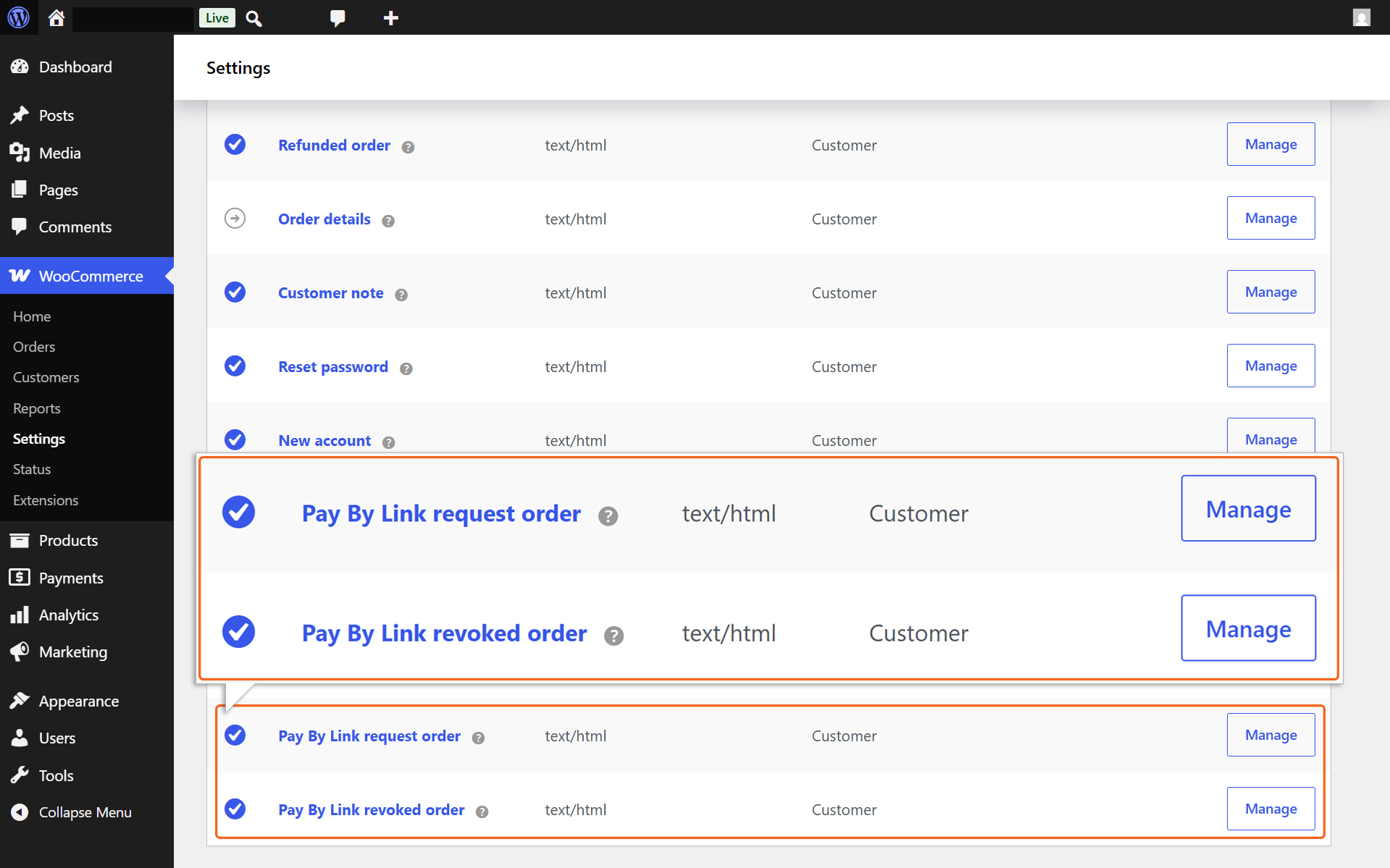
Also users can customize email templates at: WooCommerce > Settings > Emails > Pay By Link (Request or Revoke Order).
Order creation
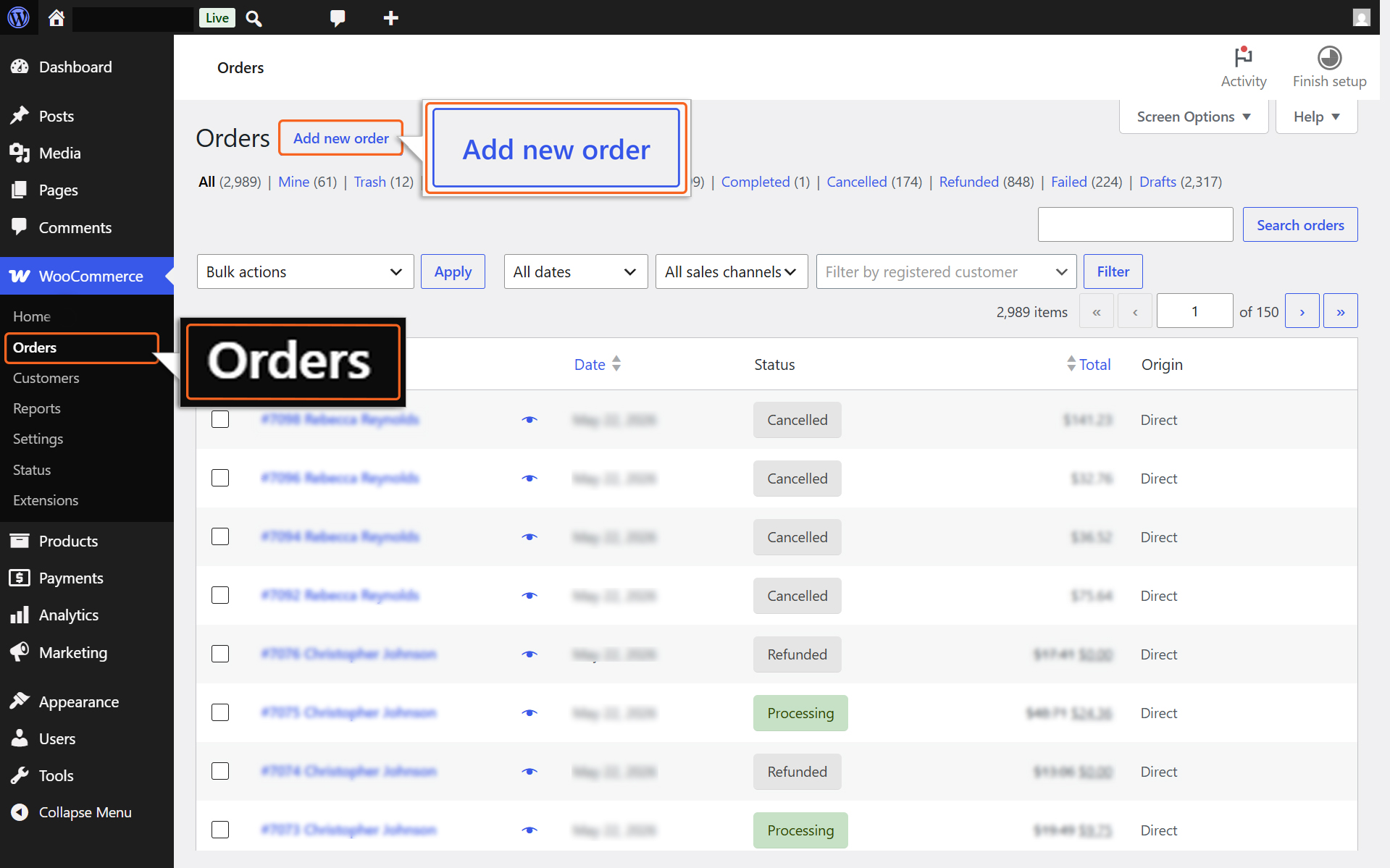
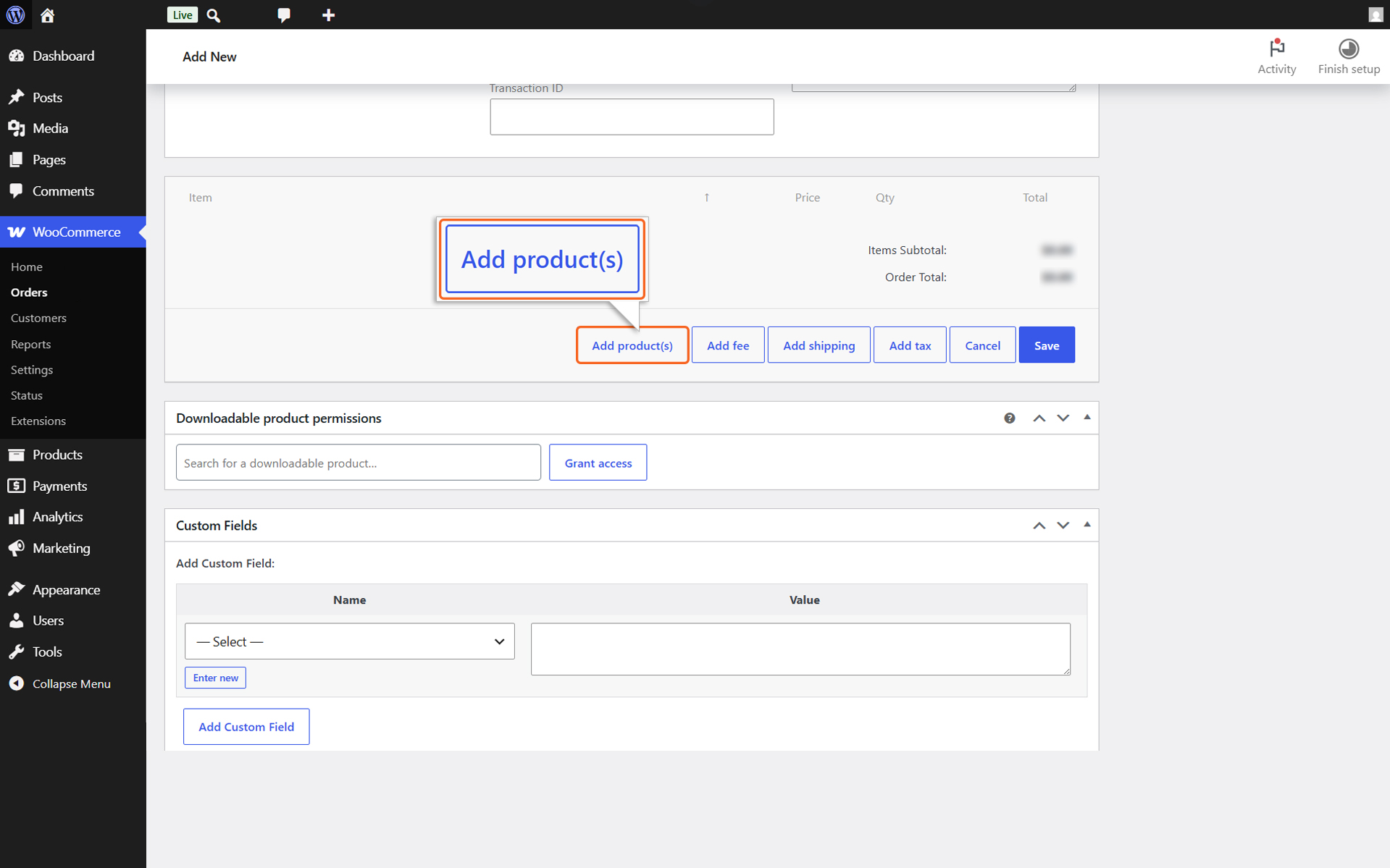
1. Navigate to Order section in woocommerce Side panel & Click on Add New Order button
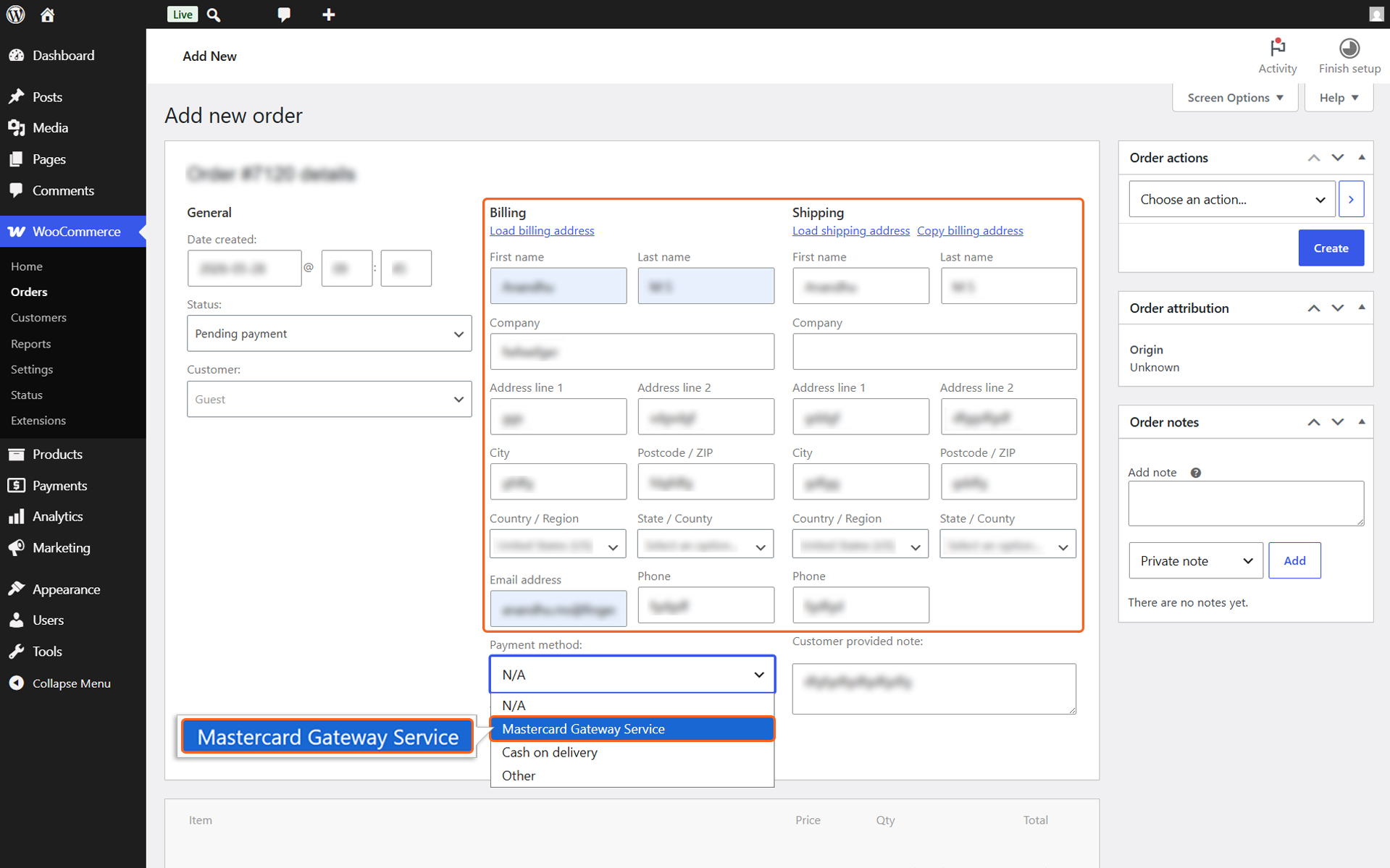
2. Add Billing Address & Shipping Address & select payment method as Mastercard gateway
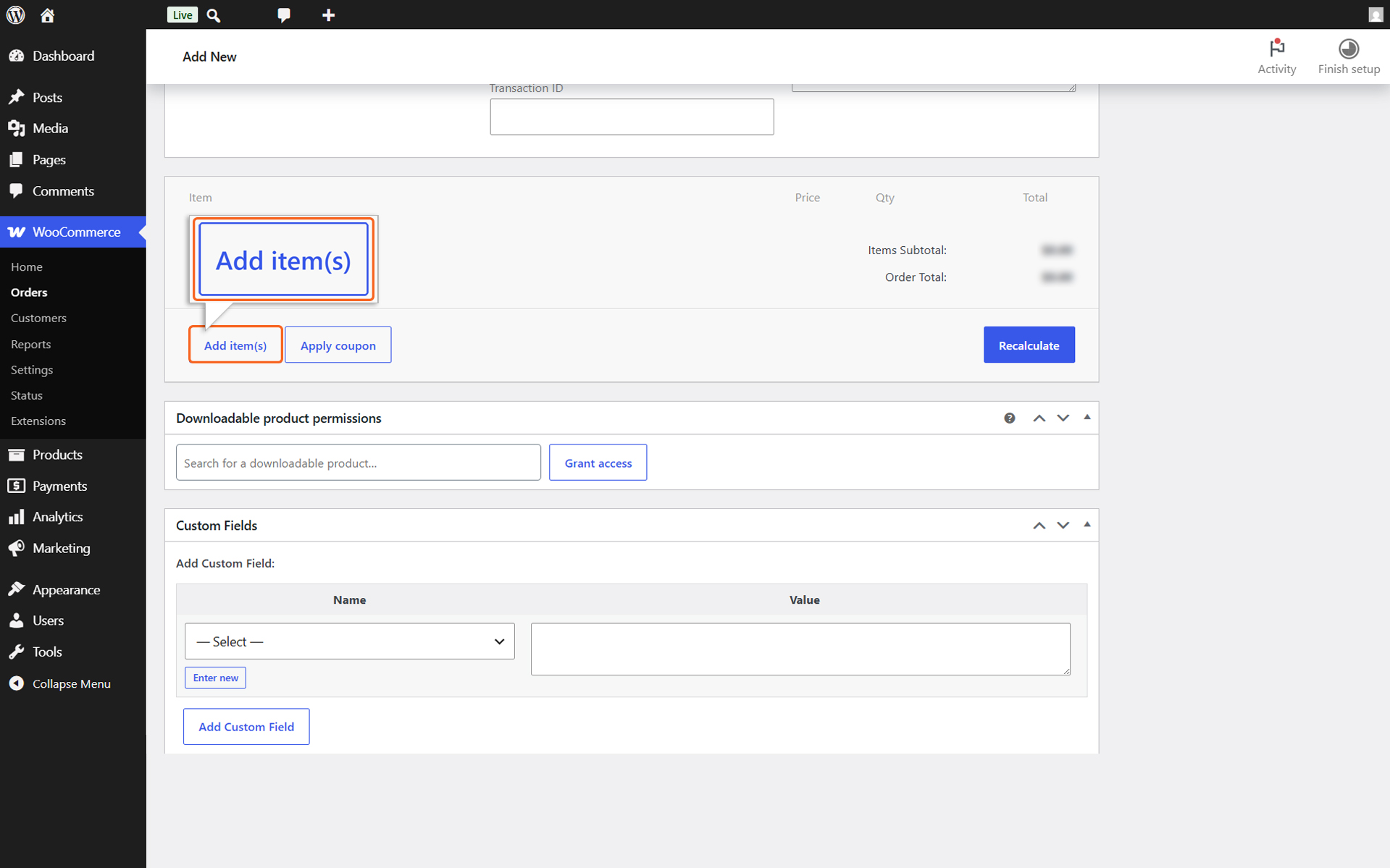
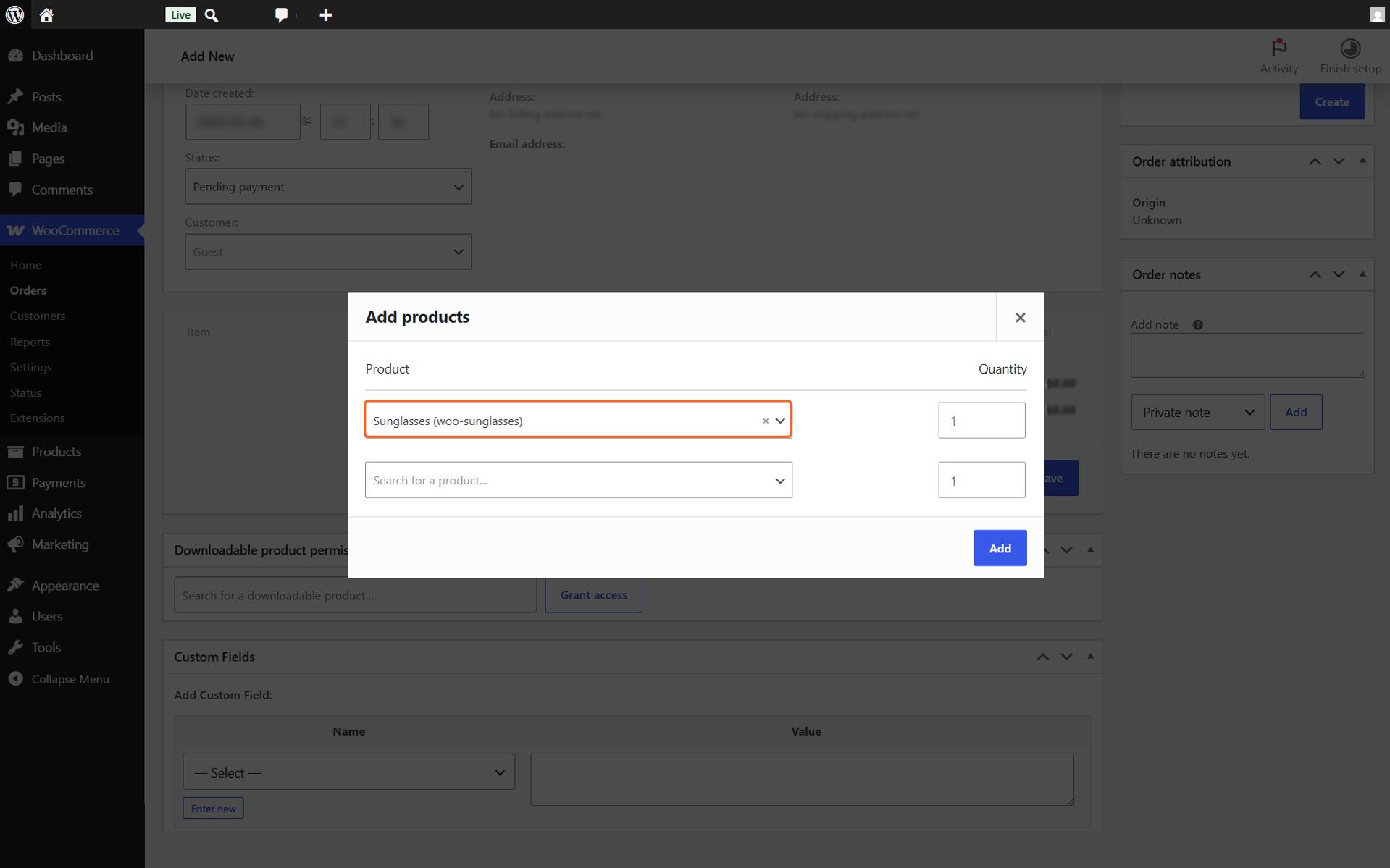
3. Select the required products and its quantity and click add button
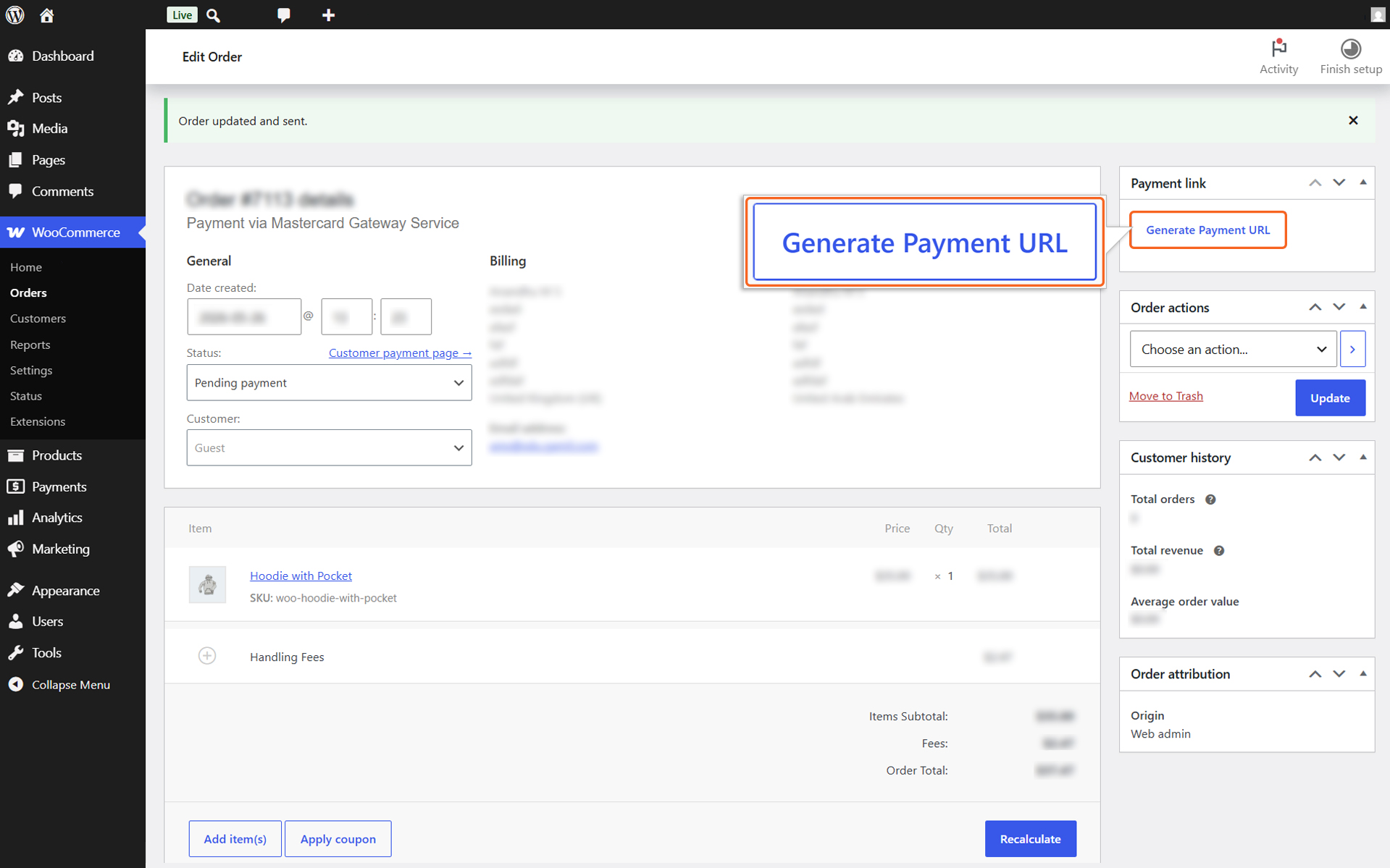
4. Click on the Generate Payment URL button
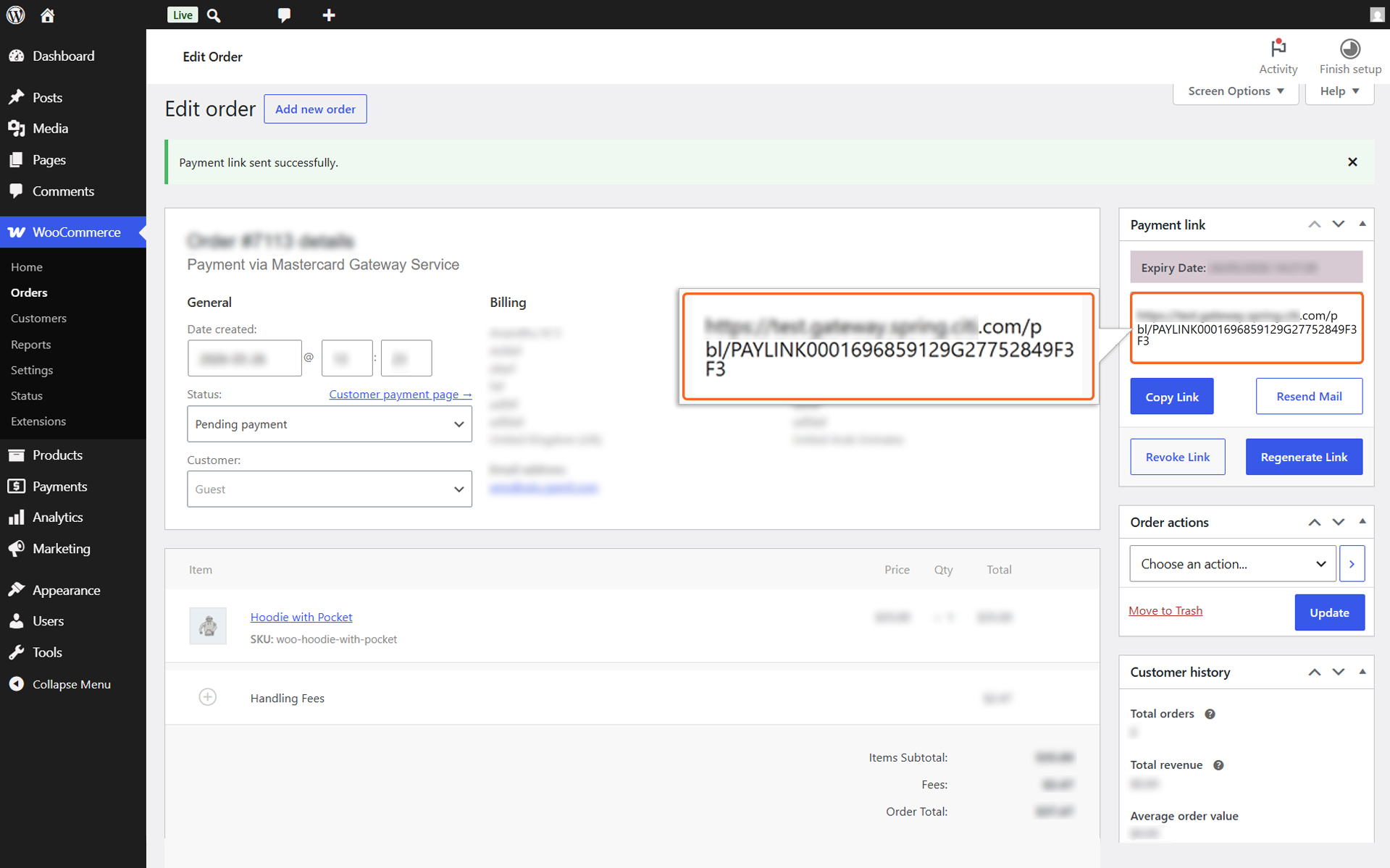
System Output: The system will automatically generate a secure payment link and email it to the customer.
- Revoke Link: Cancel an active payment link to prevent future use.
- Regenerate Link: Create a new payment link if the previous one has expired or is invalid.
- Resend Email: Re-deliver the “Pay by Link” email notification to the customer.
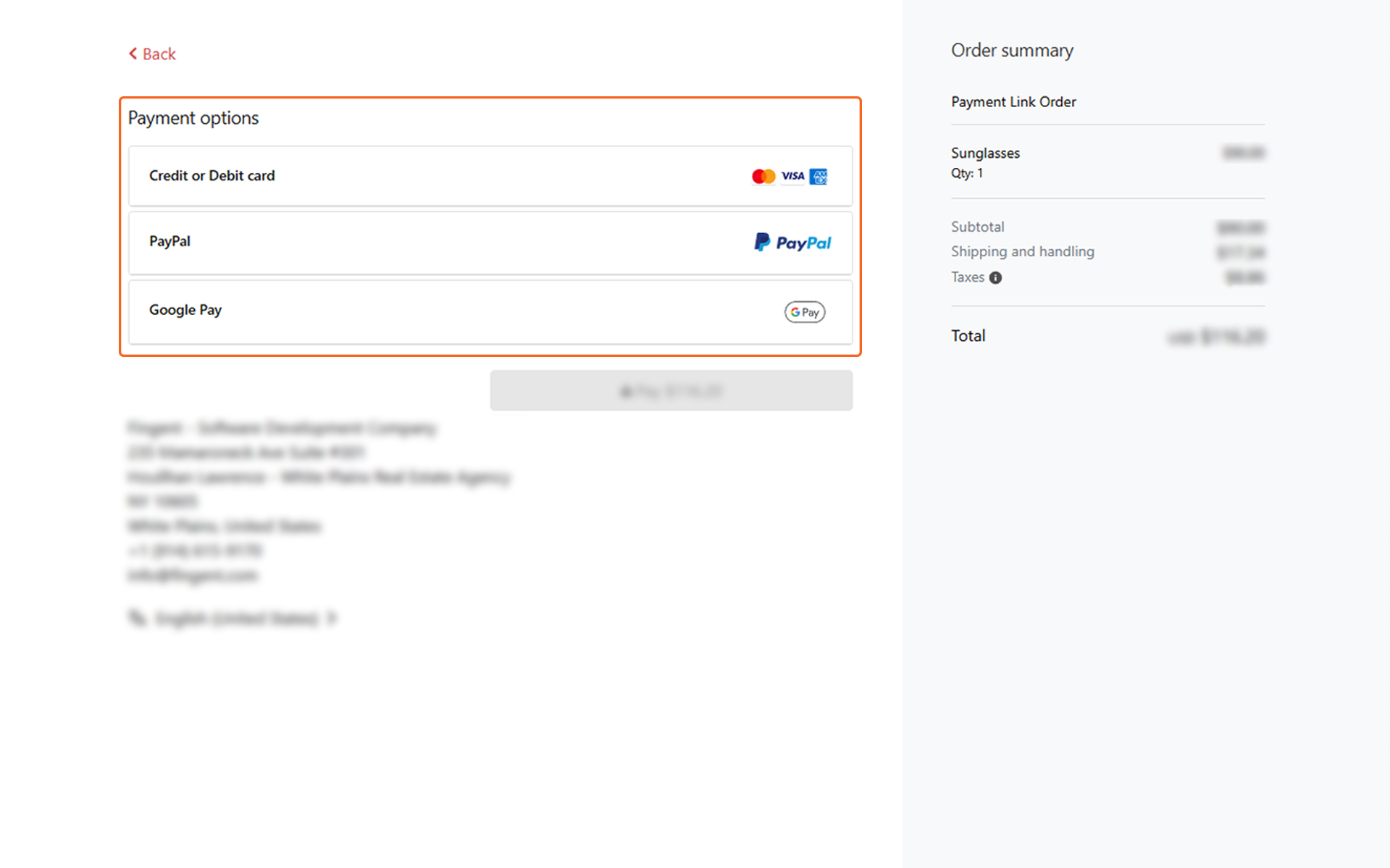
Navigating to the generated payment link redirects the user to the checkout page,allowing them to complete the online payment process.