Created date: 29-01-26 | Updated date: 06-03-26 | Plugin version: 3.0.2 | API version: 100
Mastercard Gateway for Magento, OpenCart, PrestaShop and WooCommerce
Hosted Checkout – Pay By Link Configuration
Here’s a detailed breakdown of each field in the Hosted Checkout Pay By Link section. This will help guide you through the setup process.
Enabling the Hosted Checkout - Pay by Link
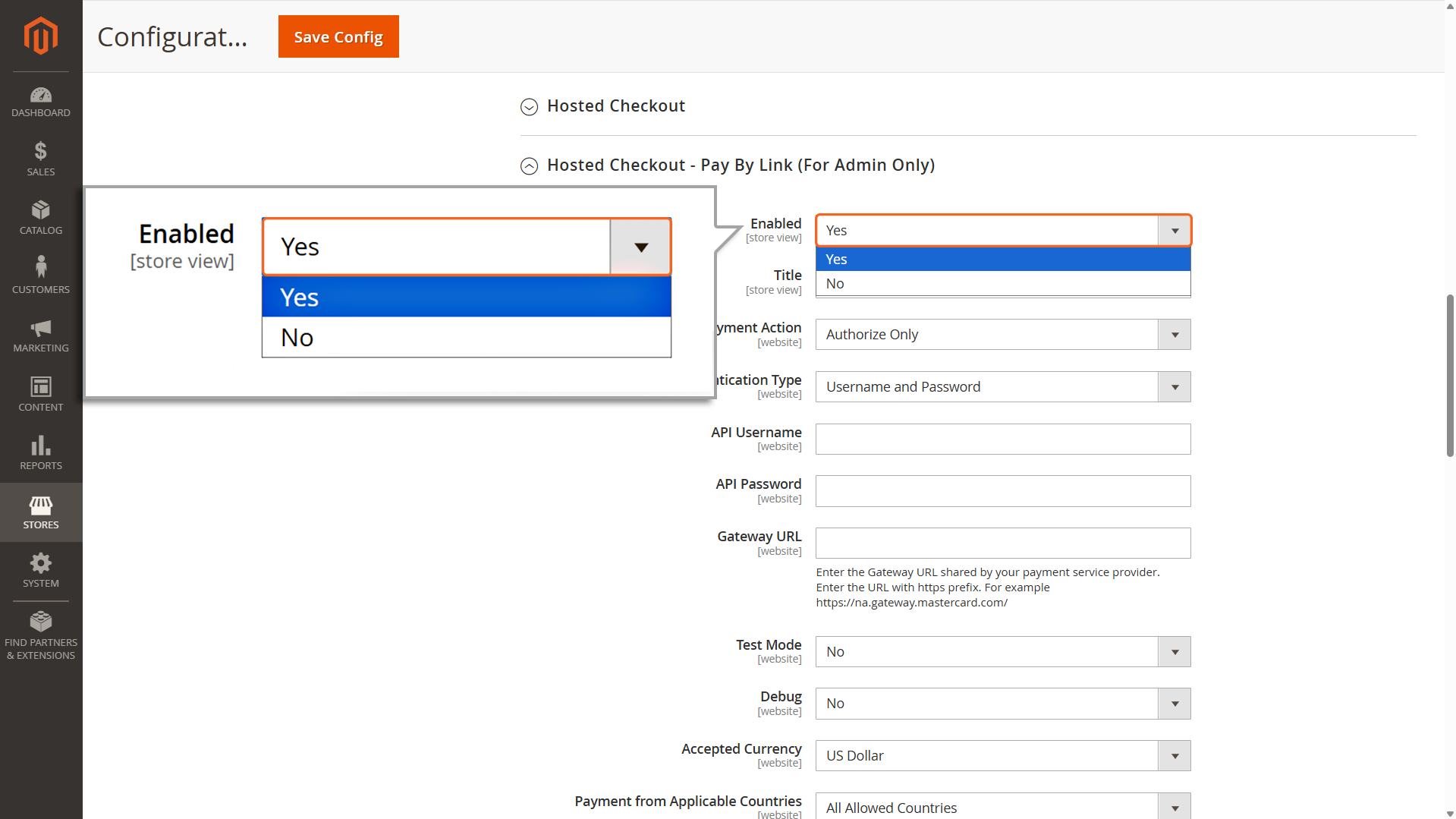
Enabled
Open the dropdown menu and select “Yes” to enable the Hosted Checkout feature. This step activates the configuration needed for this payment option as well as enables the same in the checkout page.
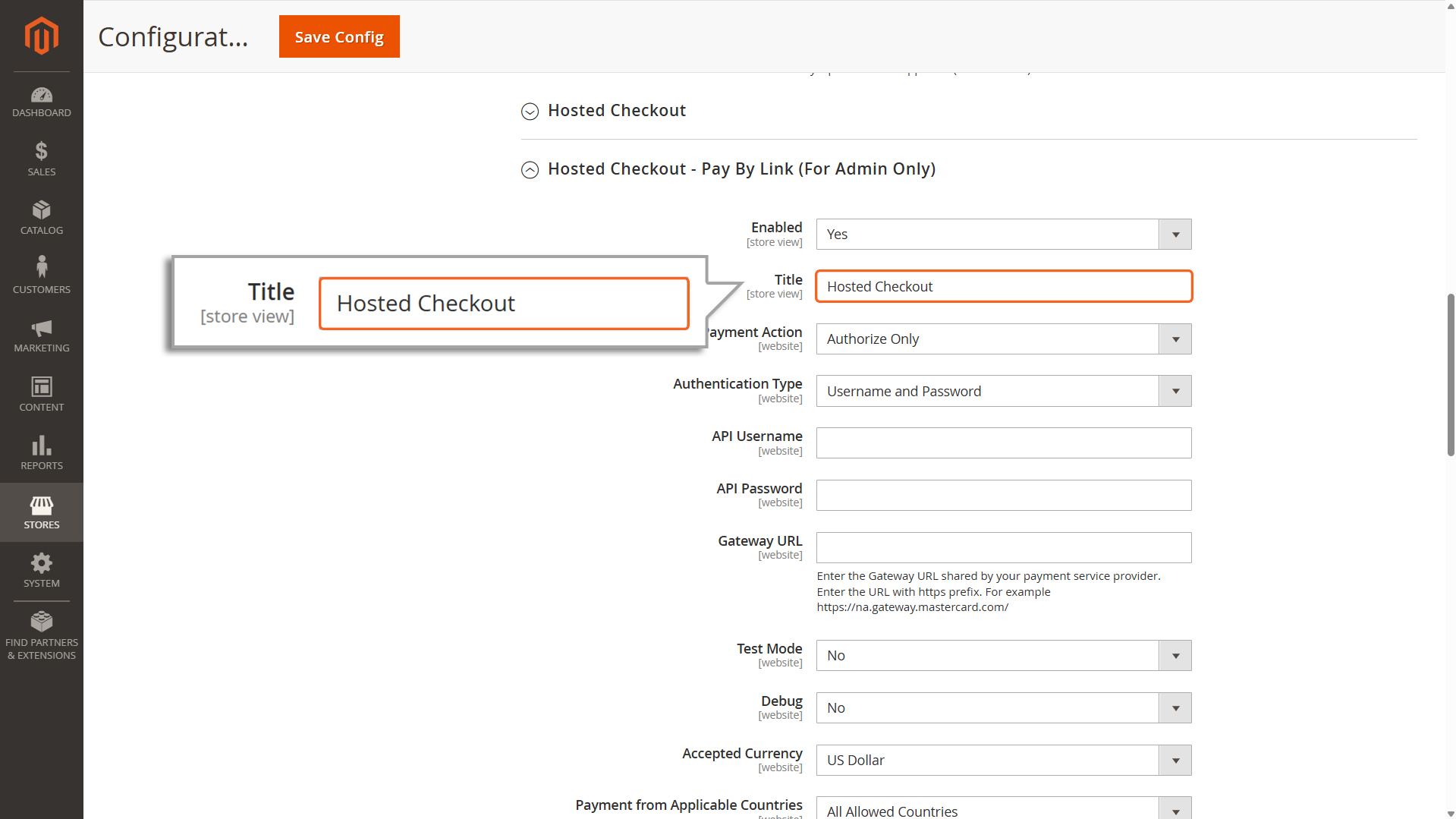
Adding “Title”
”Title” displayed Title displayed in Backend Order page
Title
Type in a name or label for this payment method. This is what the Admin will see on the Order Create Form when choosing how to pay.
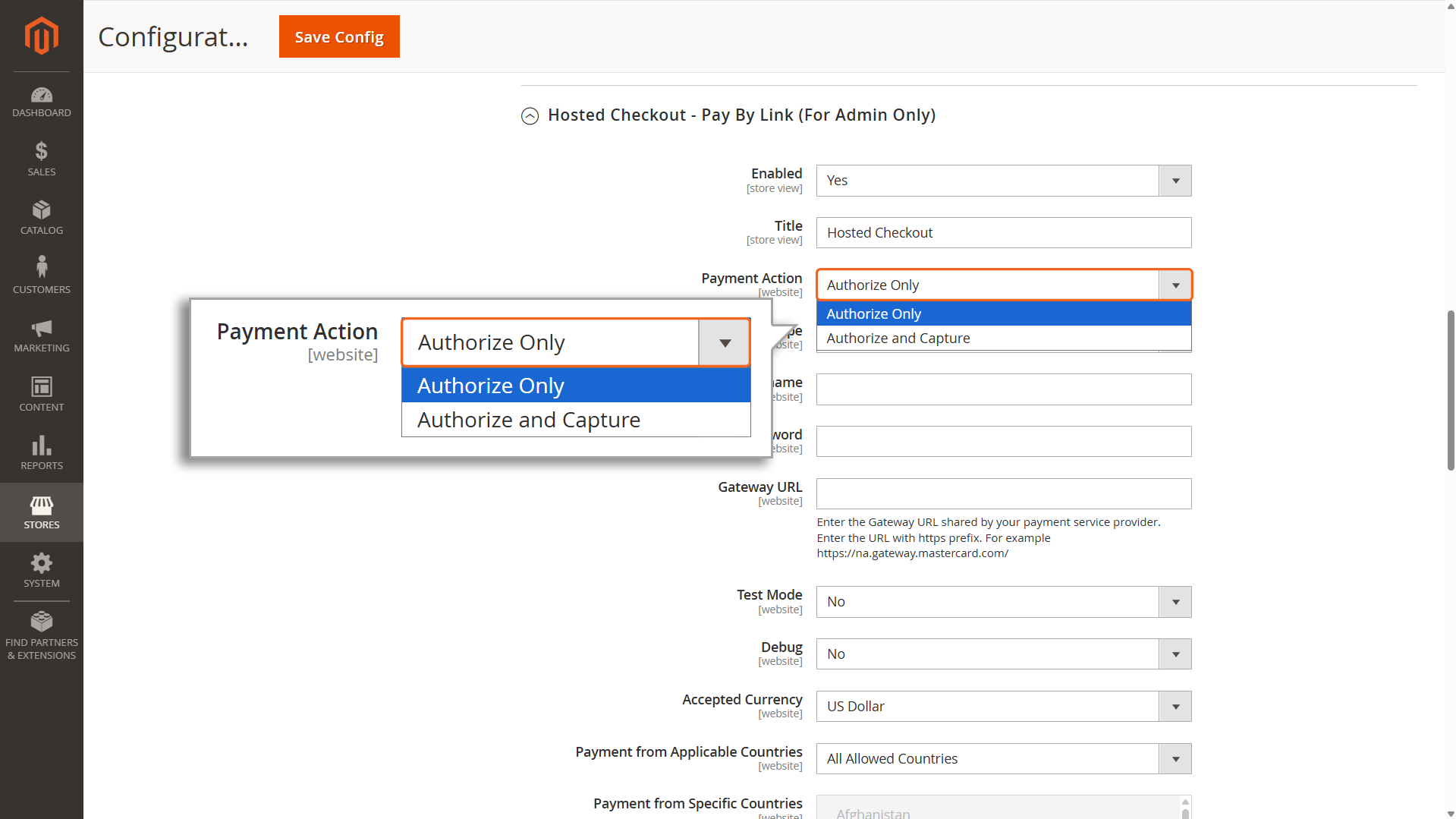
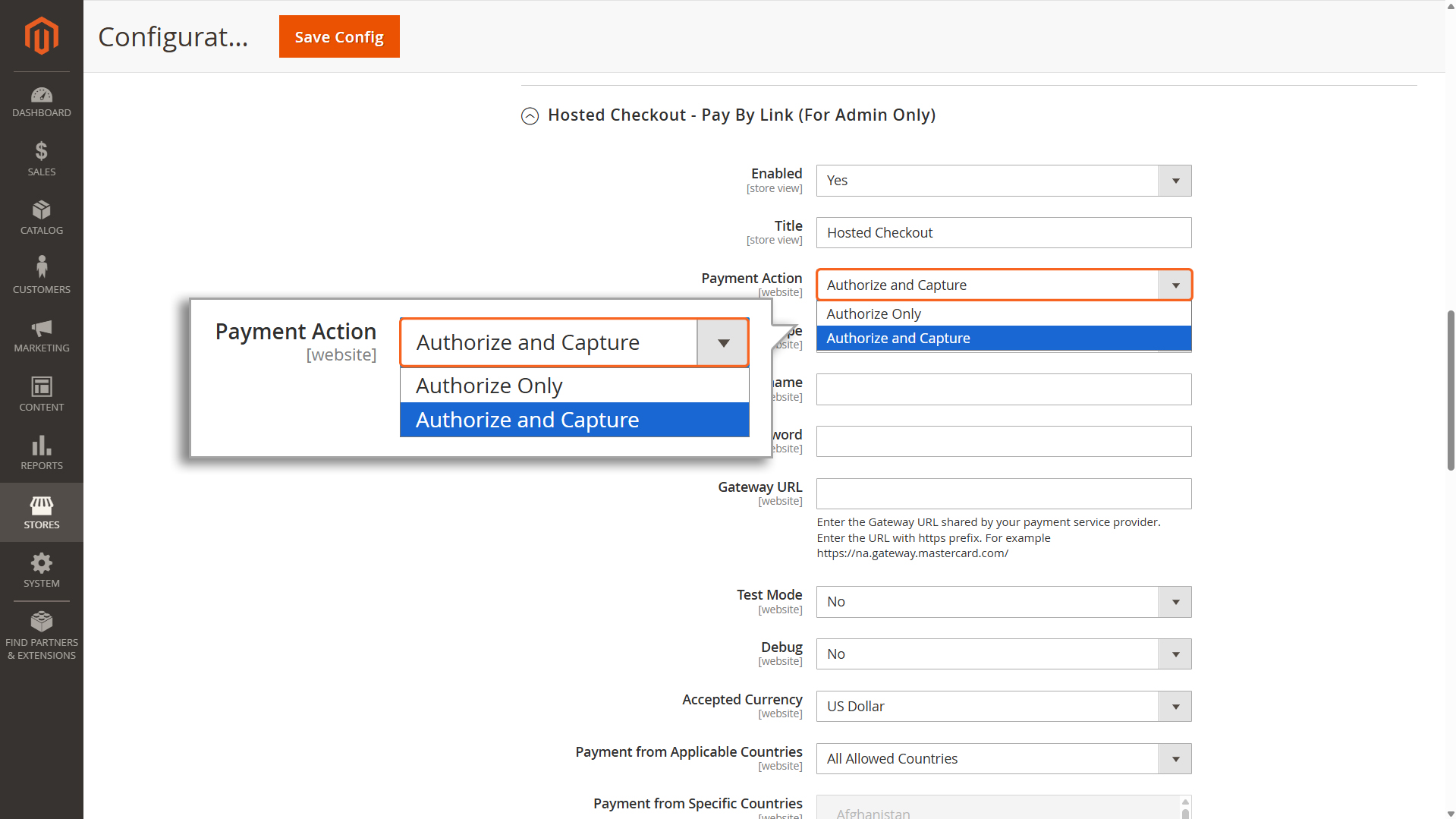
Payment Action
Choose one of the following payment flows.
”Title” displayed Title displayed in Backend Order page
Payment Action - Authorize Only
1. Authorize Only
If you choose “Payment Action” as Authorize Only, you will need to manually process the transaction to accept the payment. This means you must take an additional step to capture the payment amount.
The manual capture of funds is done through the Backend. Detailed instructions for this process can be found in the Managing Transactions section of this document.
The Authorize Only payment method works in two steps:
Authorization happens during checkout. This ensures the payment method is valid and reserves the funds.
Funds capture happens later. The money is only deducted after the merchant invoices the order.
This method gives you more control but requires you to complete the capture process manually within the stipulated timeframe configured for your MID.
Payment Action - Authorize & Capture
2. Authorize & Capture
If you choose the ‘Payment Action’ option as Authorize & Capture, the payment process will happen automatically. Here’s how it works:
When a user enters their card details and submits an order, the total amount of the order is immediately deducted from their card.
This amount is then automatically transferred to the merchant’s account.
Please note that while the transfer is automatic, it might take a little time for the amount to show up in the merchant’s account. However, no additional action is required from either the user or the merchant to complete the process.
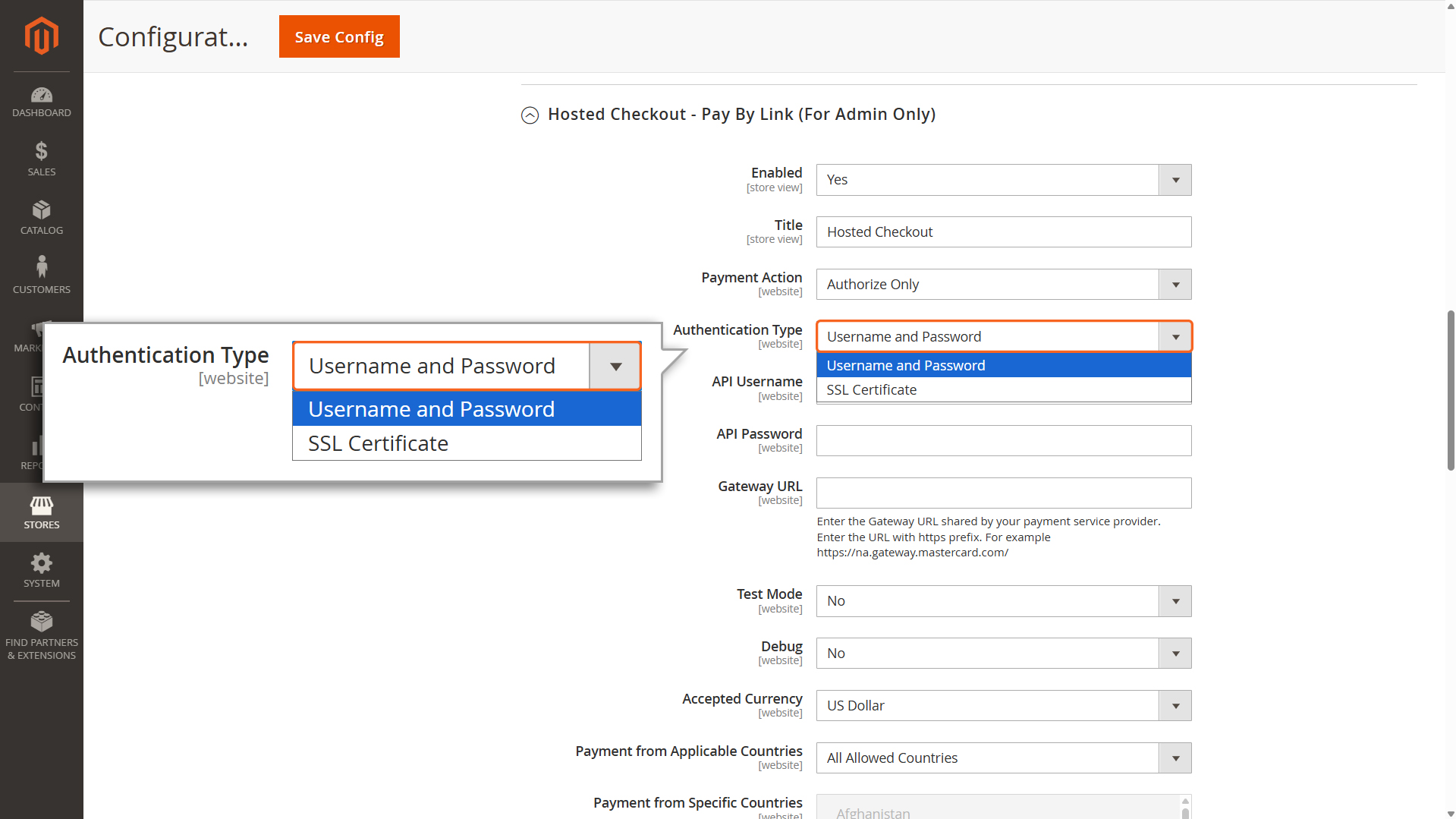
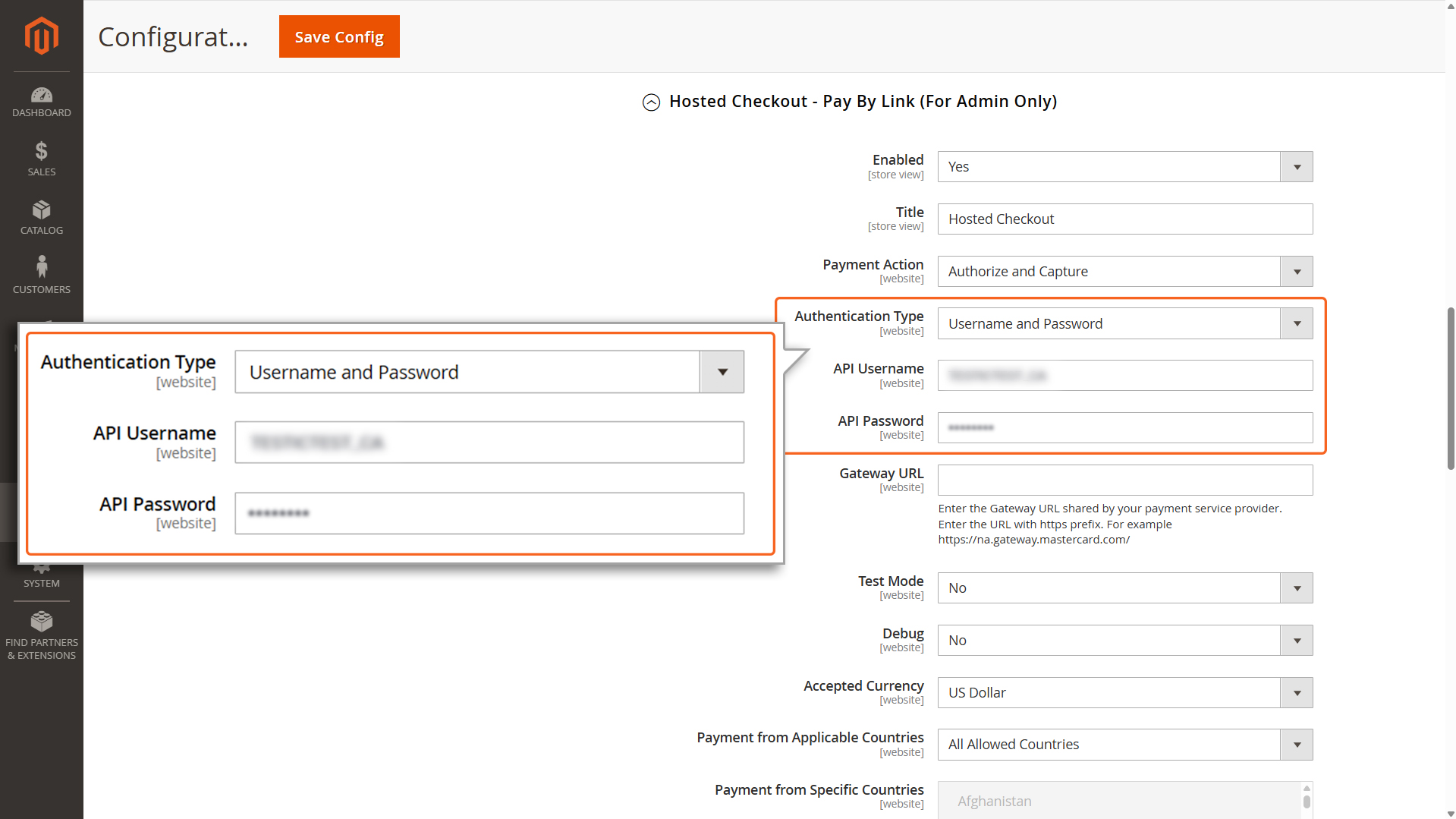
API Password: Enter the API password obtained from your merchant account.
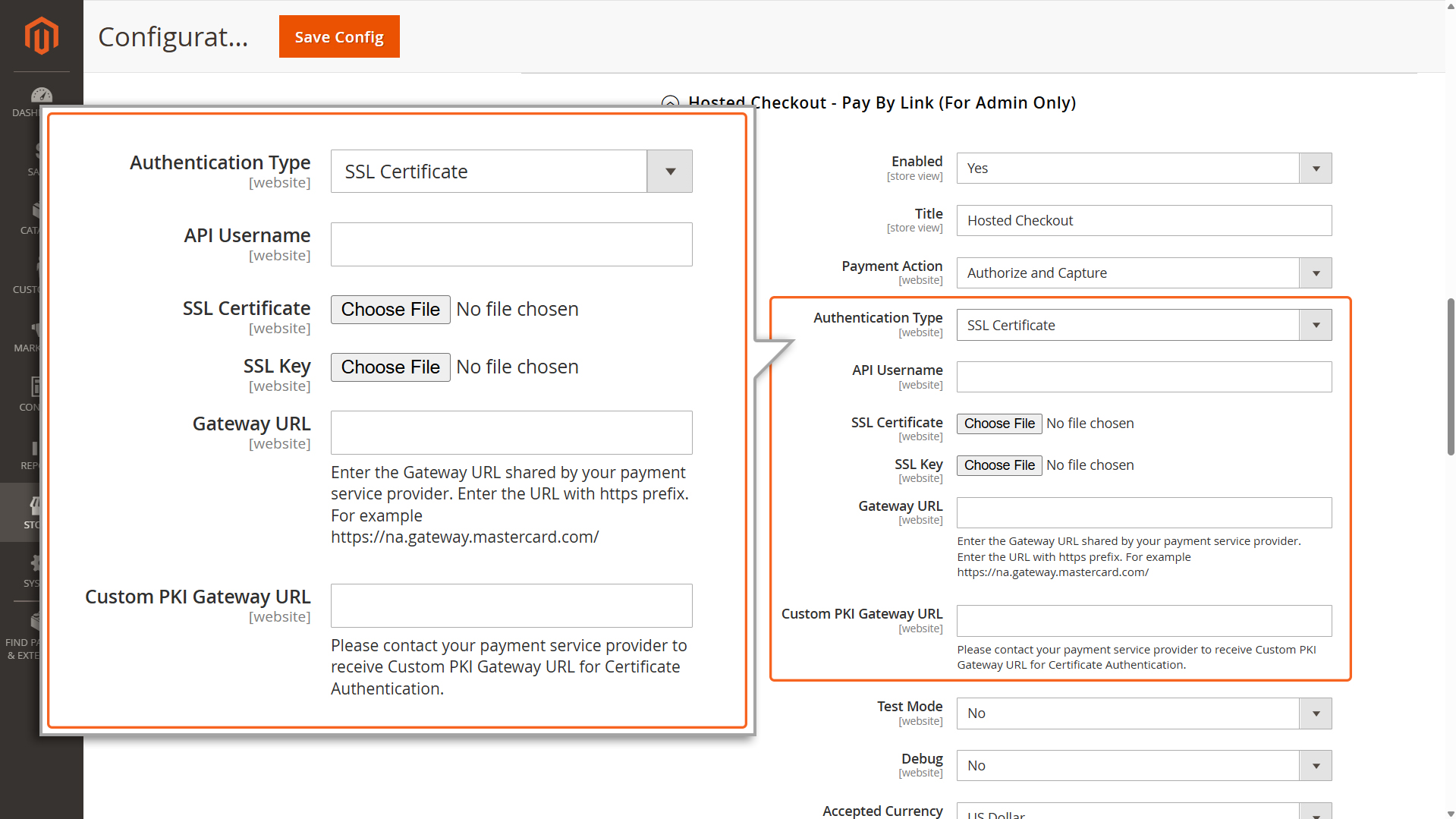
Authentication Type → SSL Certificate
2. SSL Certificate
API Username: Enter your API username.
SSL Certificate: Upload the SSL certificate issued by a Mastercard-approved Certificate Authority (CA).
SSL Key: Upload the SSL Key.
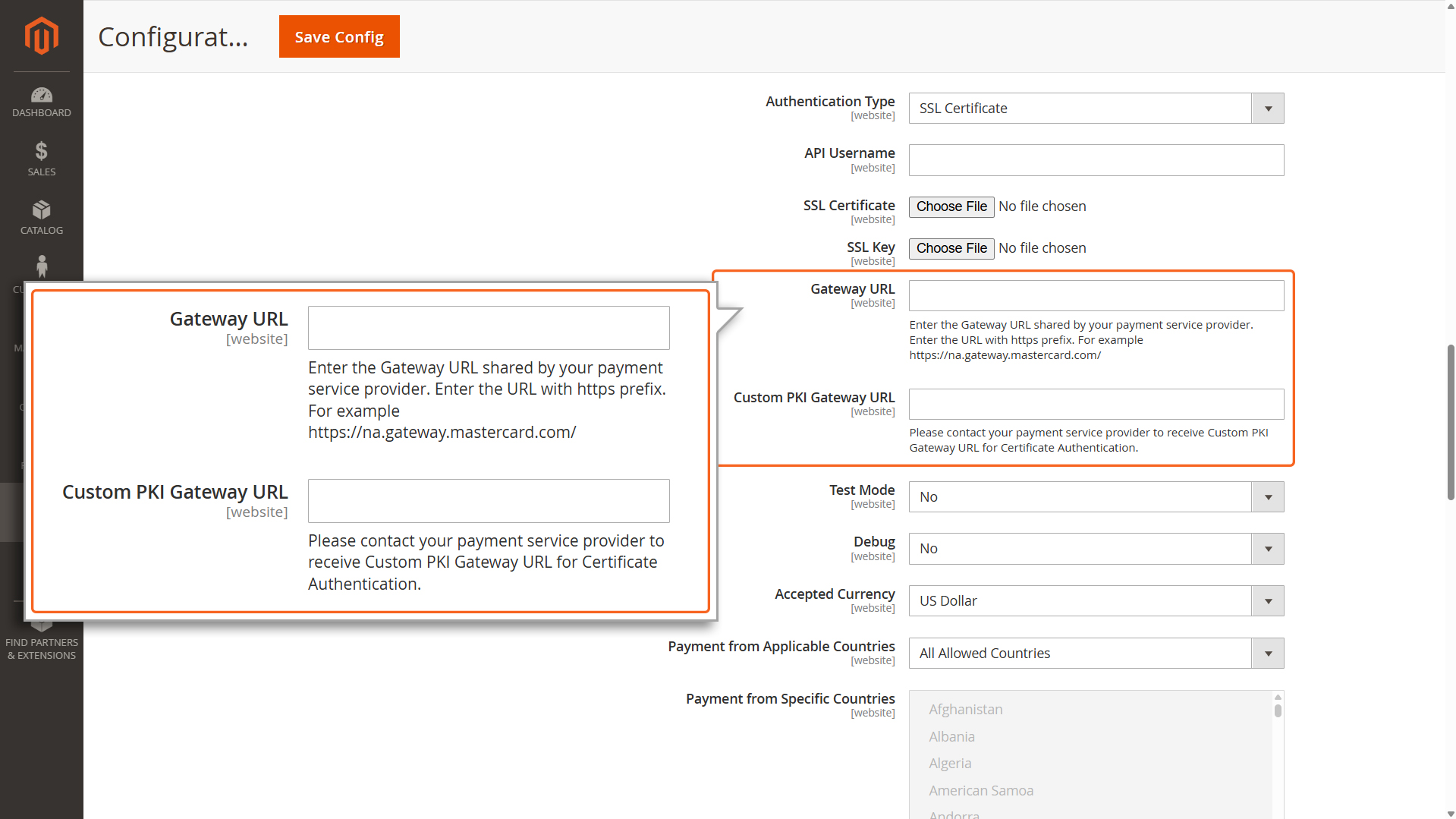
Custom PKI Gateway URL: Contact your payment service provider/bank to acquire this URL.
Note
You must present a certificate to authenticate yourself to the Mastercard Gateway with certificate authentication. Certificates are typically issued from one of many organizations that act as Certificate Authorities (CAs). This model of authentication is a component of Public Key Infrastructure (PKI) where security is achieved through confidentiality, integrity, non- repudiation, and authentication.
Gateway URL
Gateway URL
Enter the Gateway URL shared by your payment service provider. Enter the URL with https prefix. For example https://na.gateway.mastercard.com/
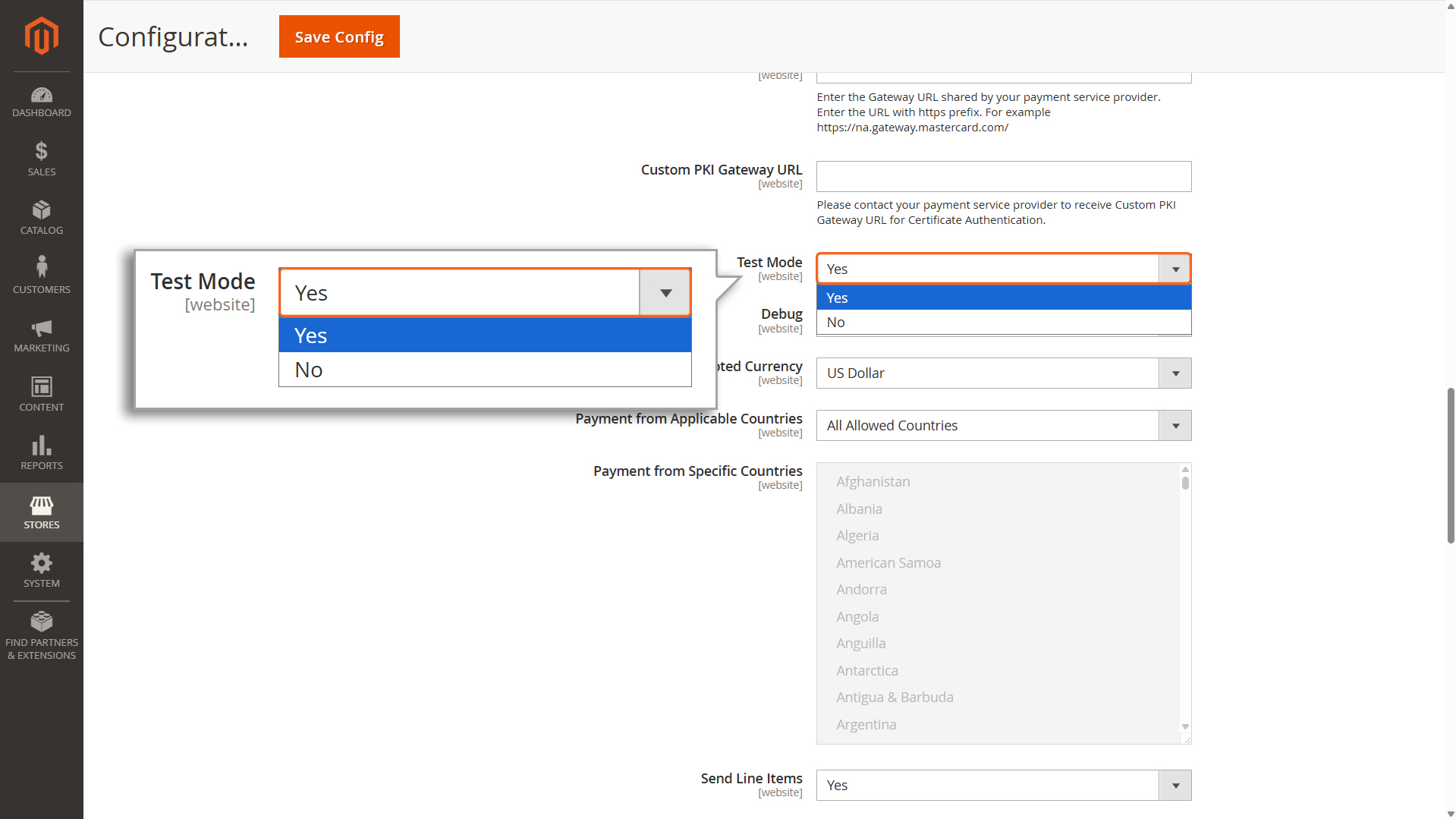
Select Yes to use test credentials (API username prefixed with TEST).
Select No to switch to live production mode.
Recommendation: Always test in Test mode before switching to Live mode.
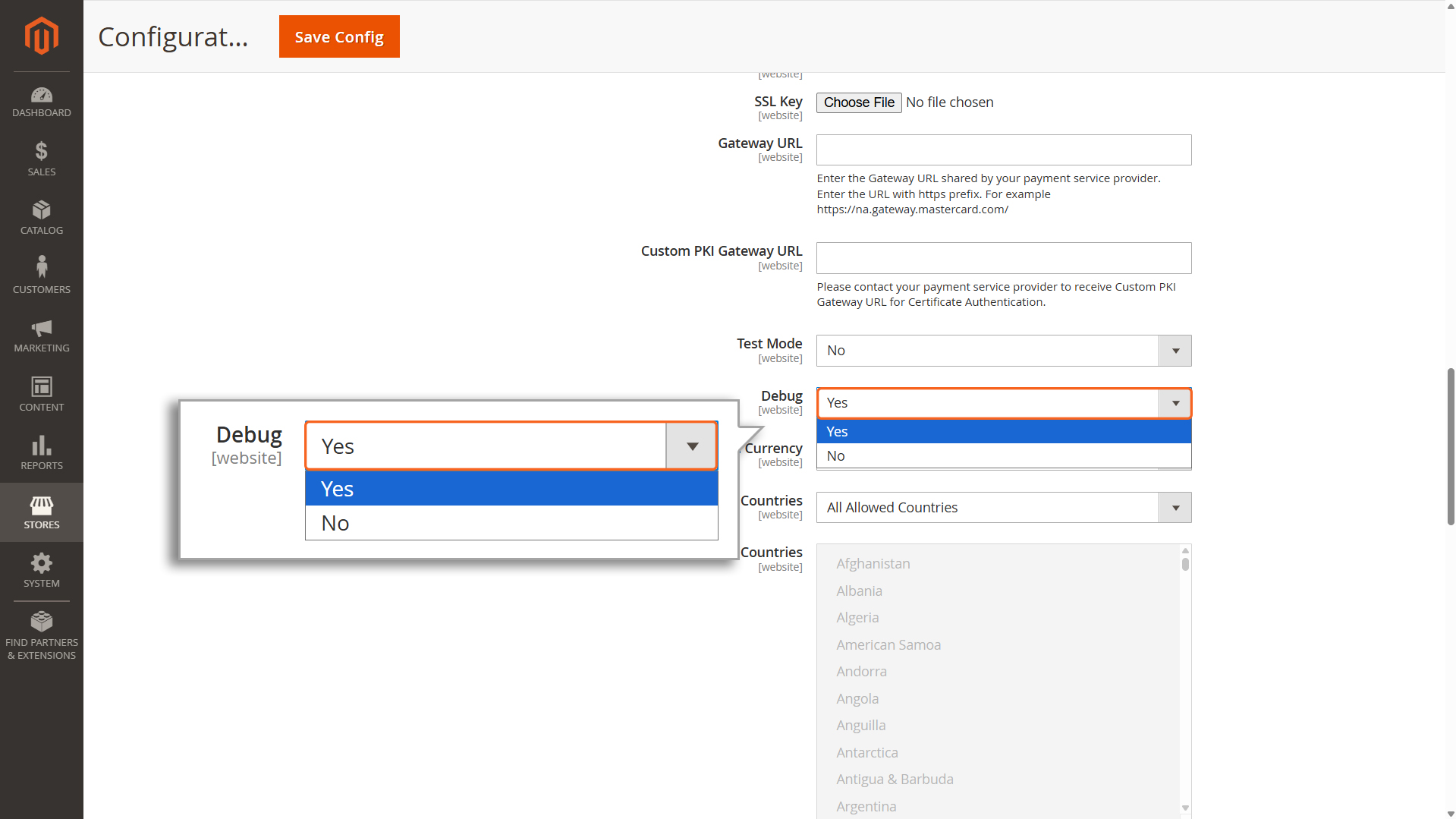
Debug
Debug
Enable Debug by selecting Yes if you’re testing in Test Mode. Debugging creates detailed logs that can help you identify and fix any issues with your payment process.
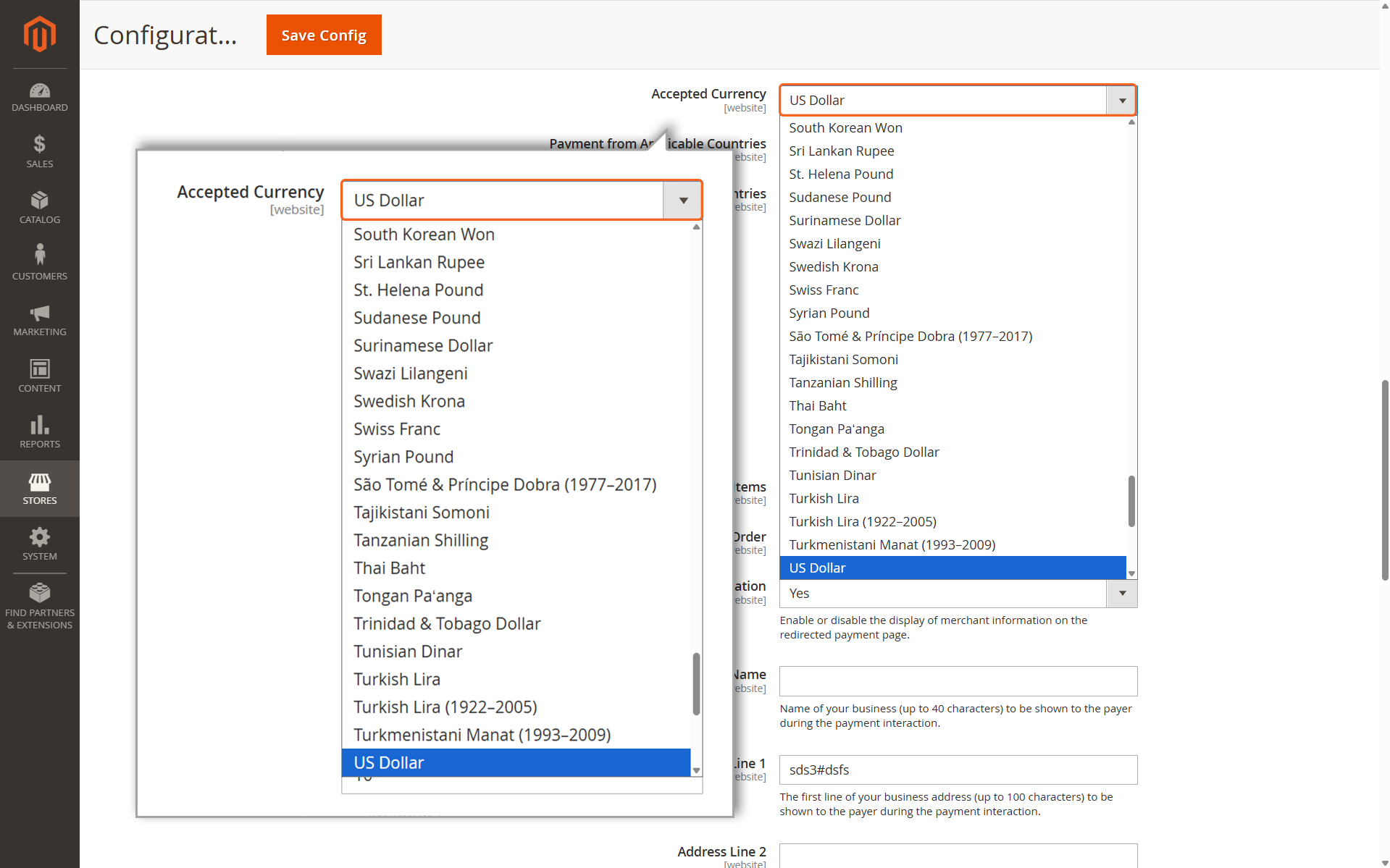
Accepted Currency
Accepted Currency
Choose the currency you want to use as the base for your store. This determines the default currency for all transactions.
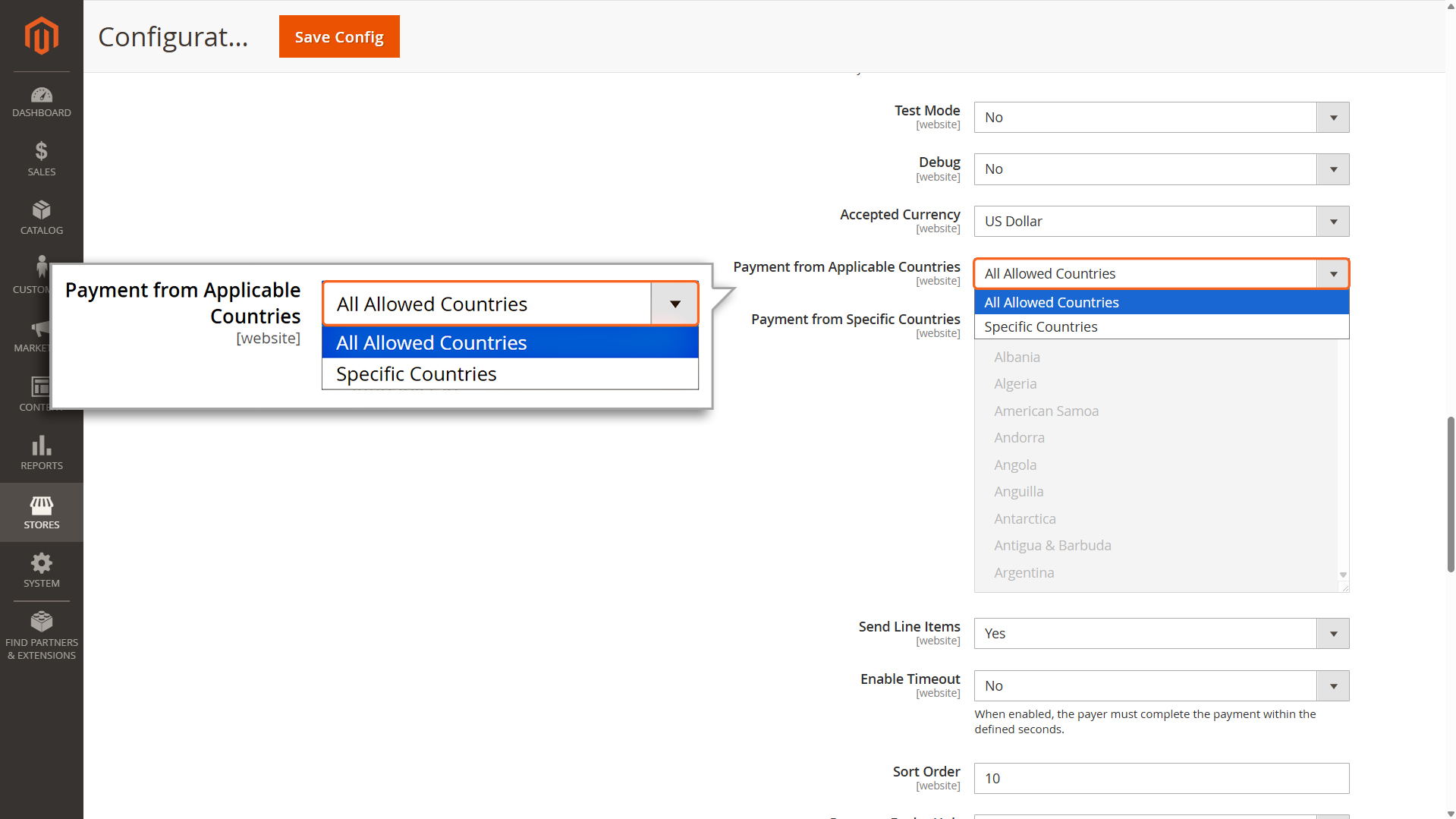
Payment from Applicable Countries
Payment from Applicable Countries
Merchants can decide which countries they want to accept payments from. This setting works separately from any blocking rules set in the Merchant Manager.
You have two choices:
All Allowed Countries: Payments can be processed from all countries that are allowed.
Specific Countries: You can pick certain countries from which payments will be accepted.
Payment Expiry Unit
Payment Expiry Unit : Defines the unit of time used to calculate the link’s expiry (e.g., Hours, Days, or Months).
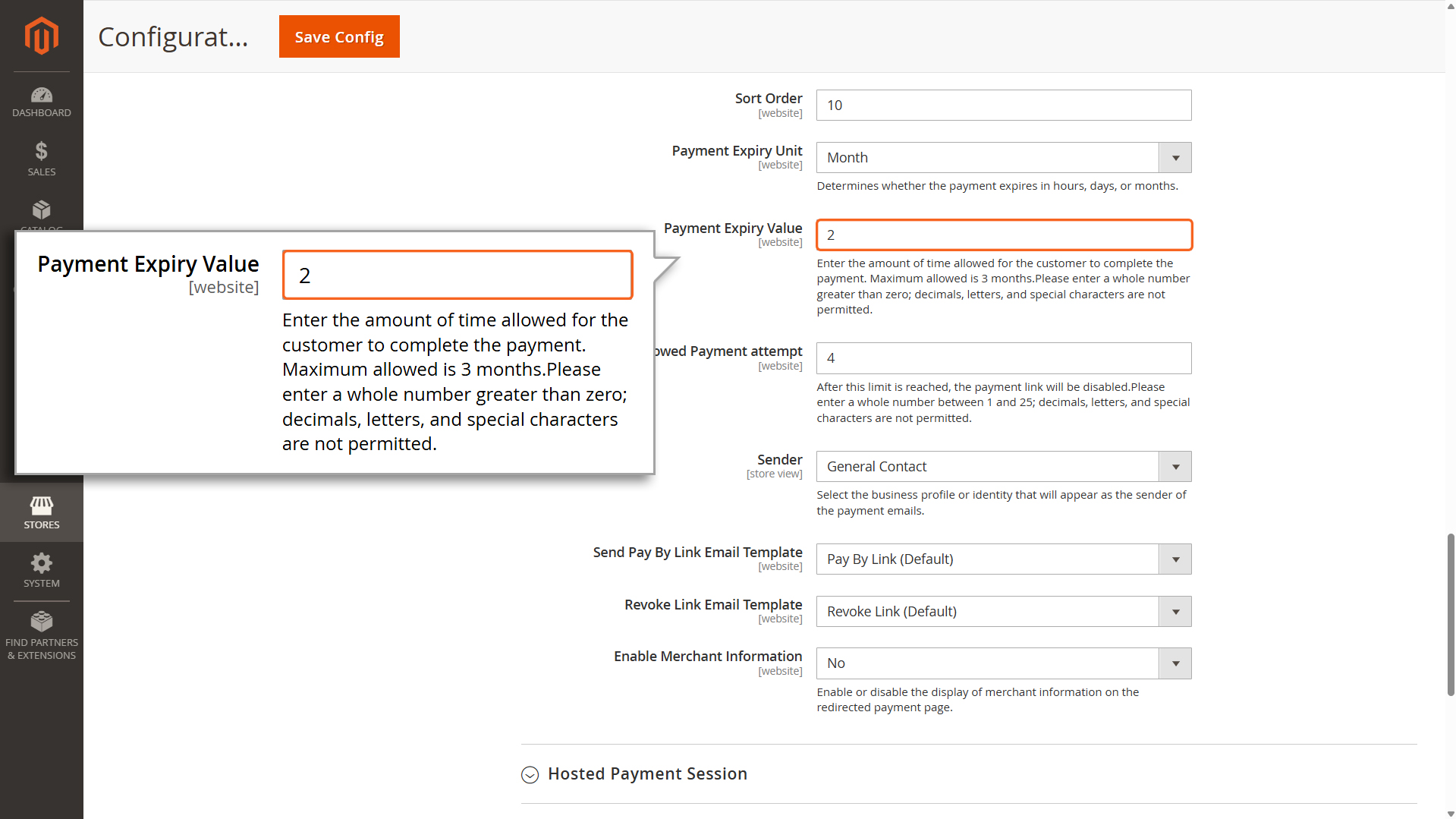
Payment Expiry Value
Payment Expiry Value : The numeric duration the link remains active. Must be a whole number greater than 0 (Max duration: 3 months).
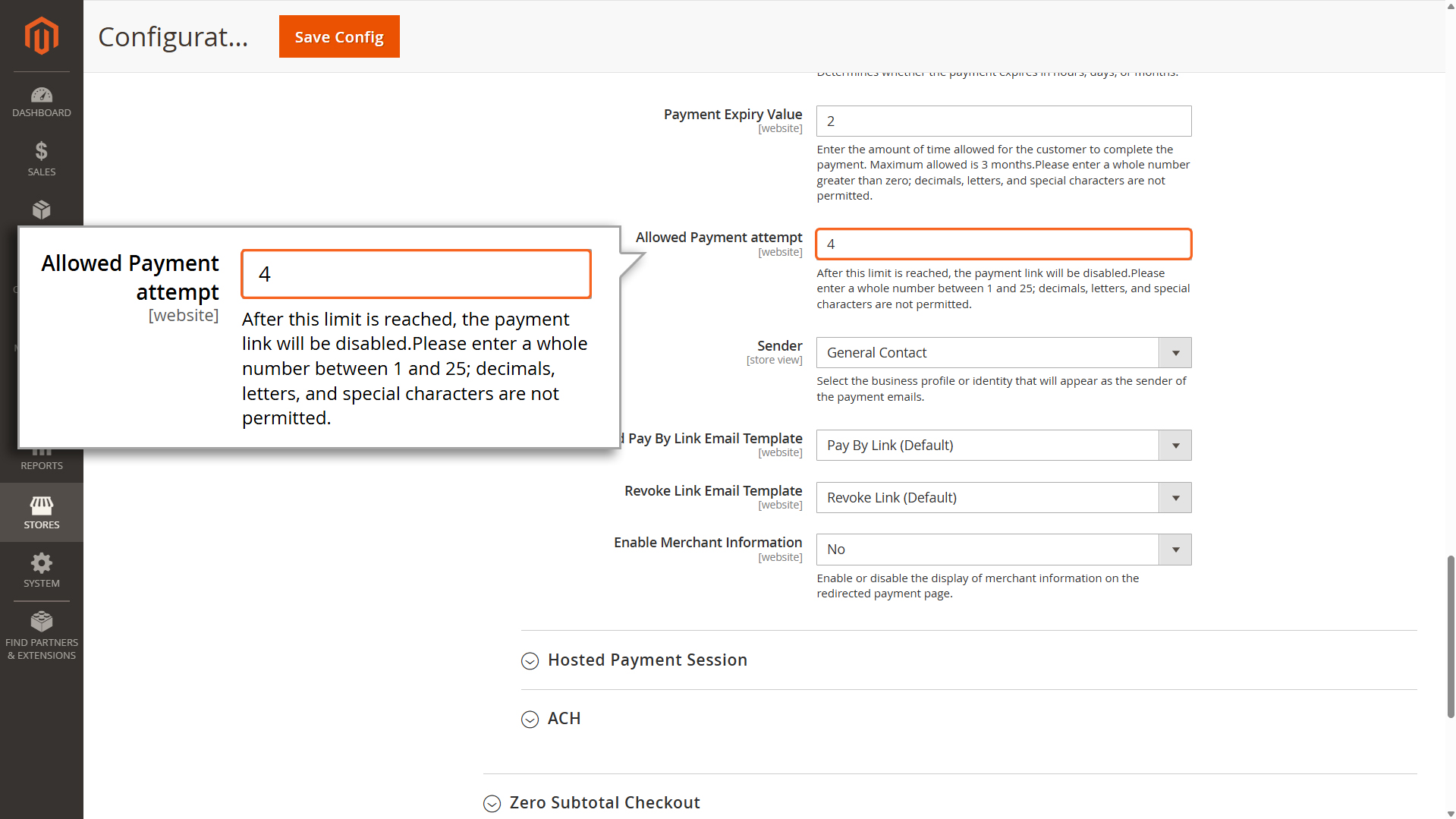
Allowed Payment Attempt
Allowed Payment Attempt : The maximum number of times a customer can try to pay before the link is disabled. Must be a whole number between 1 and 25
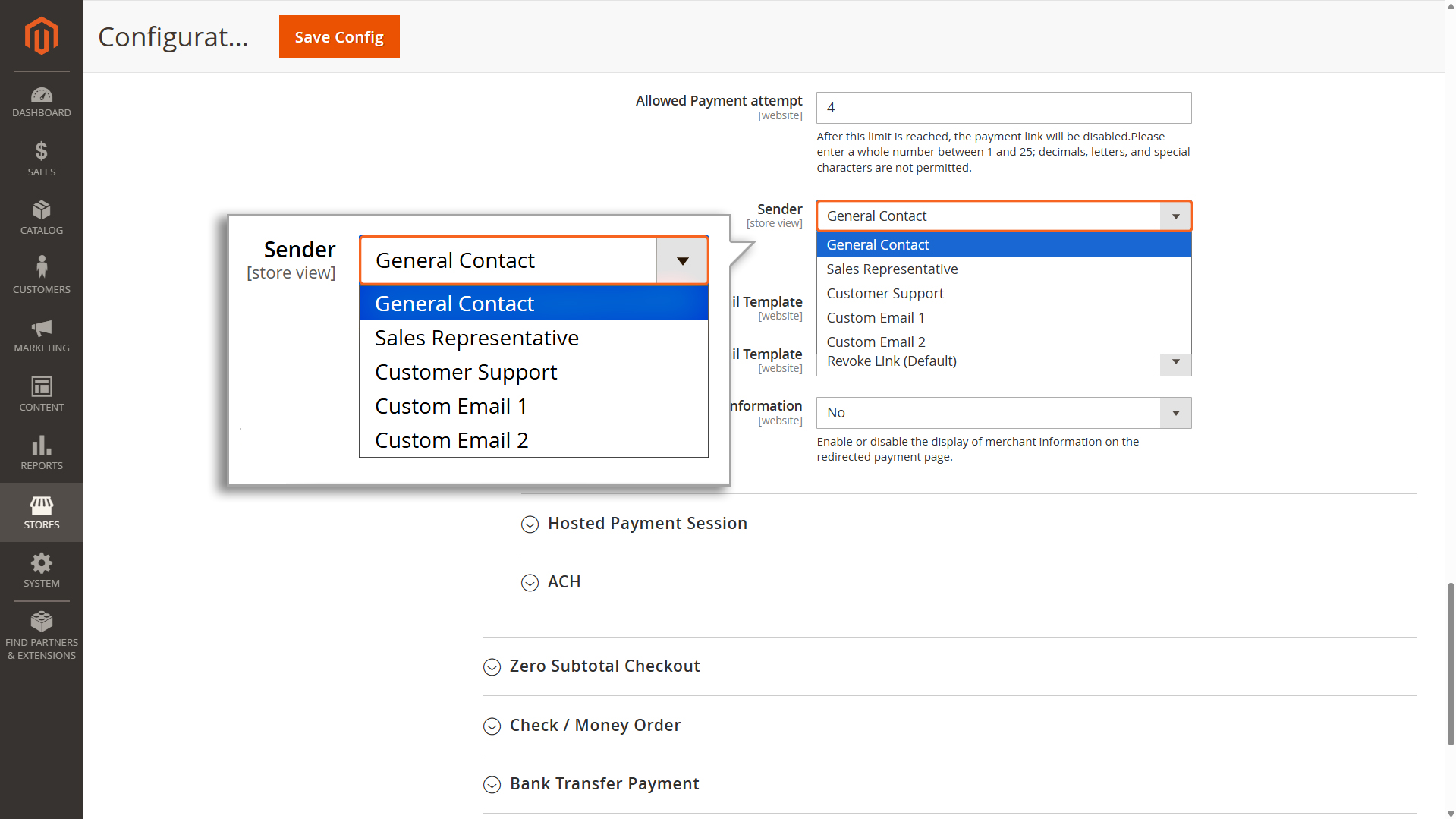
Sender Selection
Sender : Selects the business profile or identity that will display as the “From” name in customer emails.
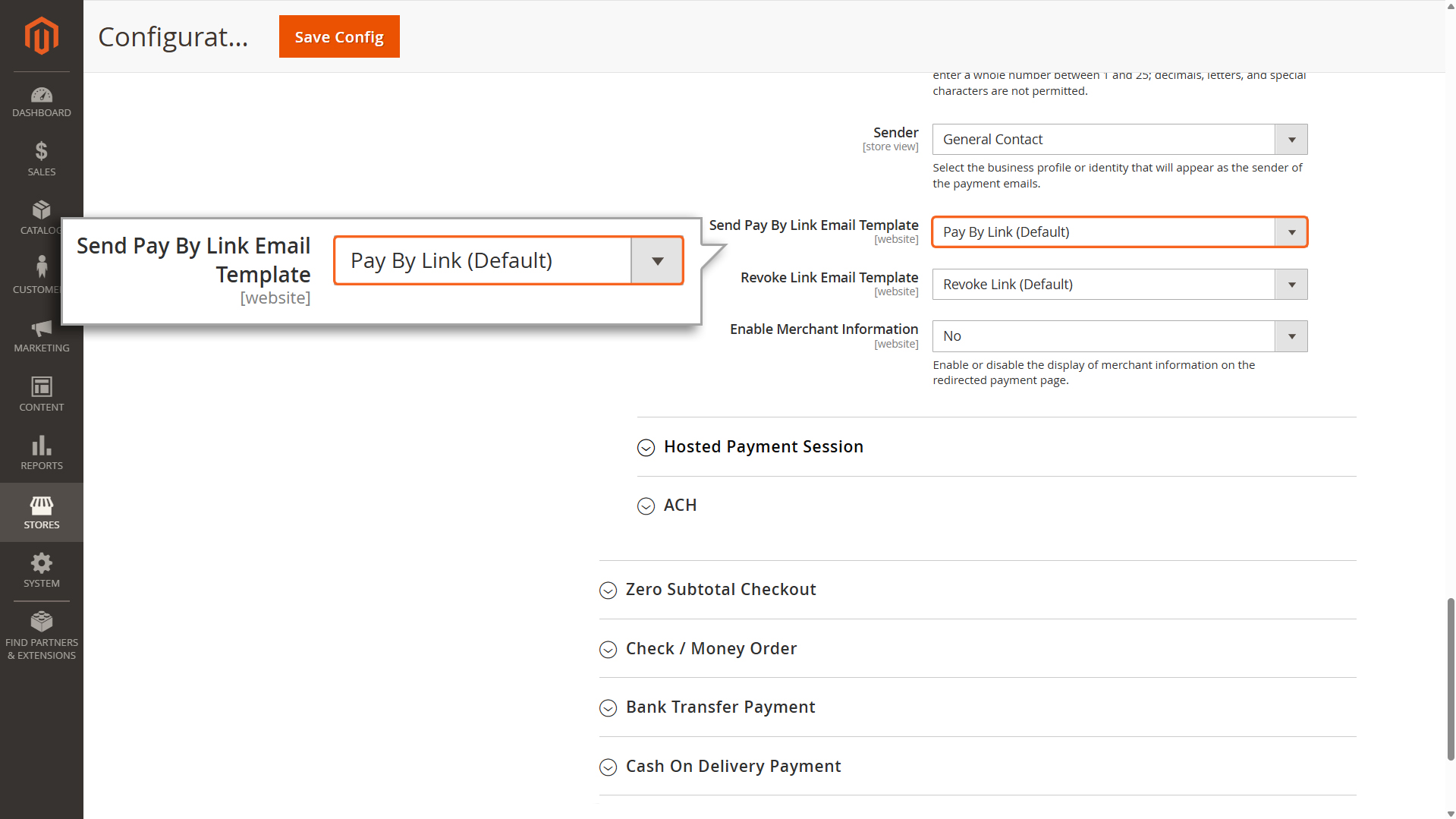
Send Pay By Link Email Template Selection
Send Pay By Link Email Template : Choose the pre-formatted email layout used when sending the initial payment request to the customer. The default template is pre-selected.
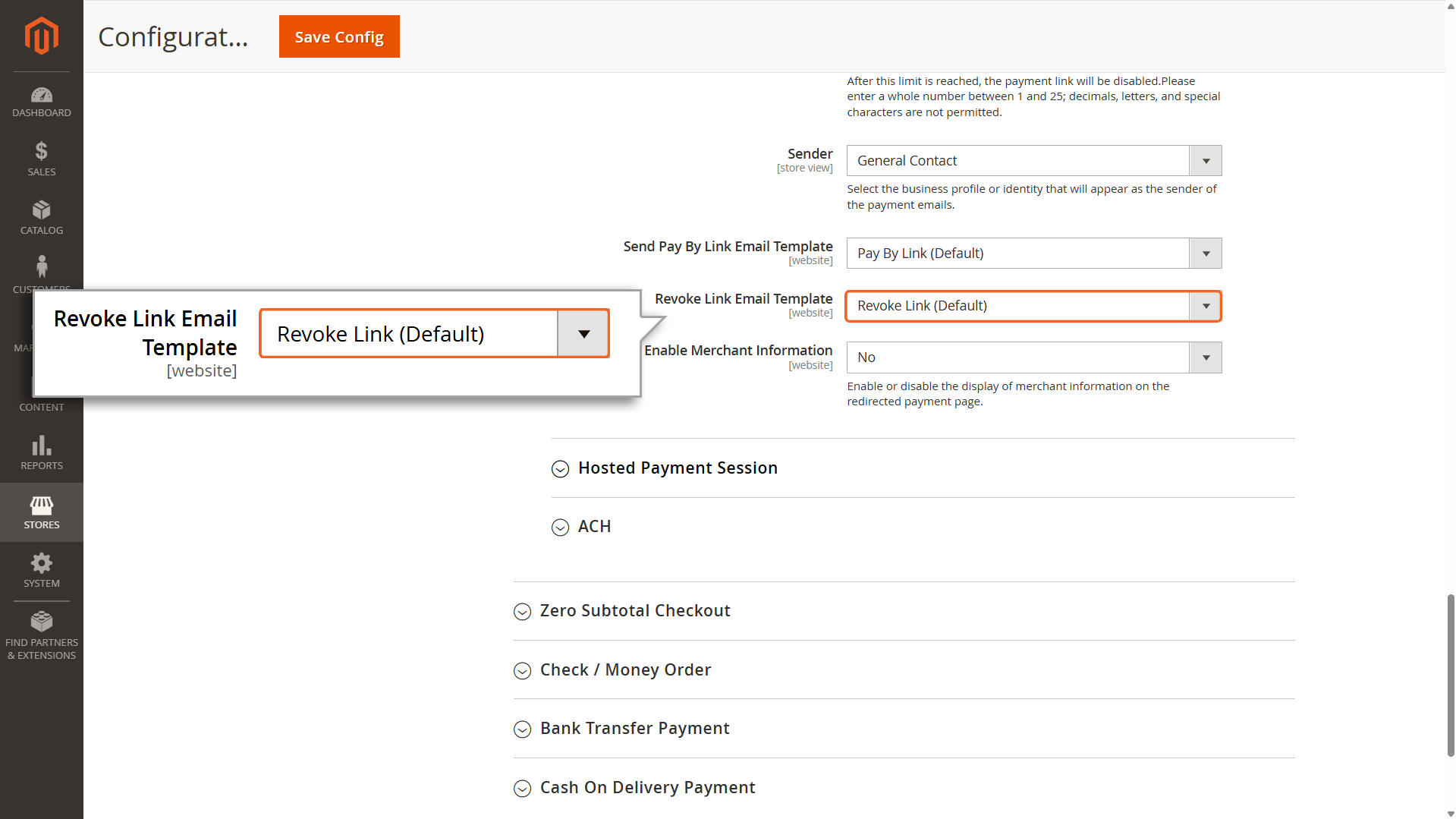
Revoke Link Email Template
Revoke Link Email Template: Choose the pre-formatted email layout sent to the customer if the payment link is manually cancelled or expires.The default template is pre-selected.
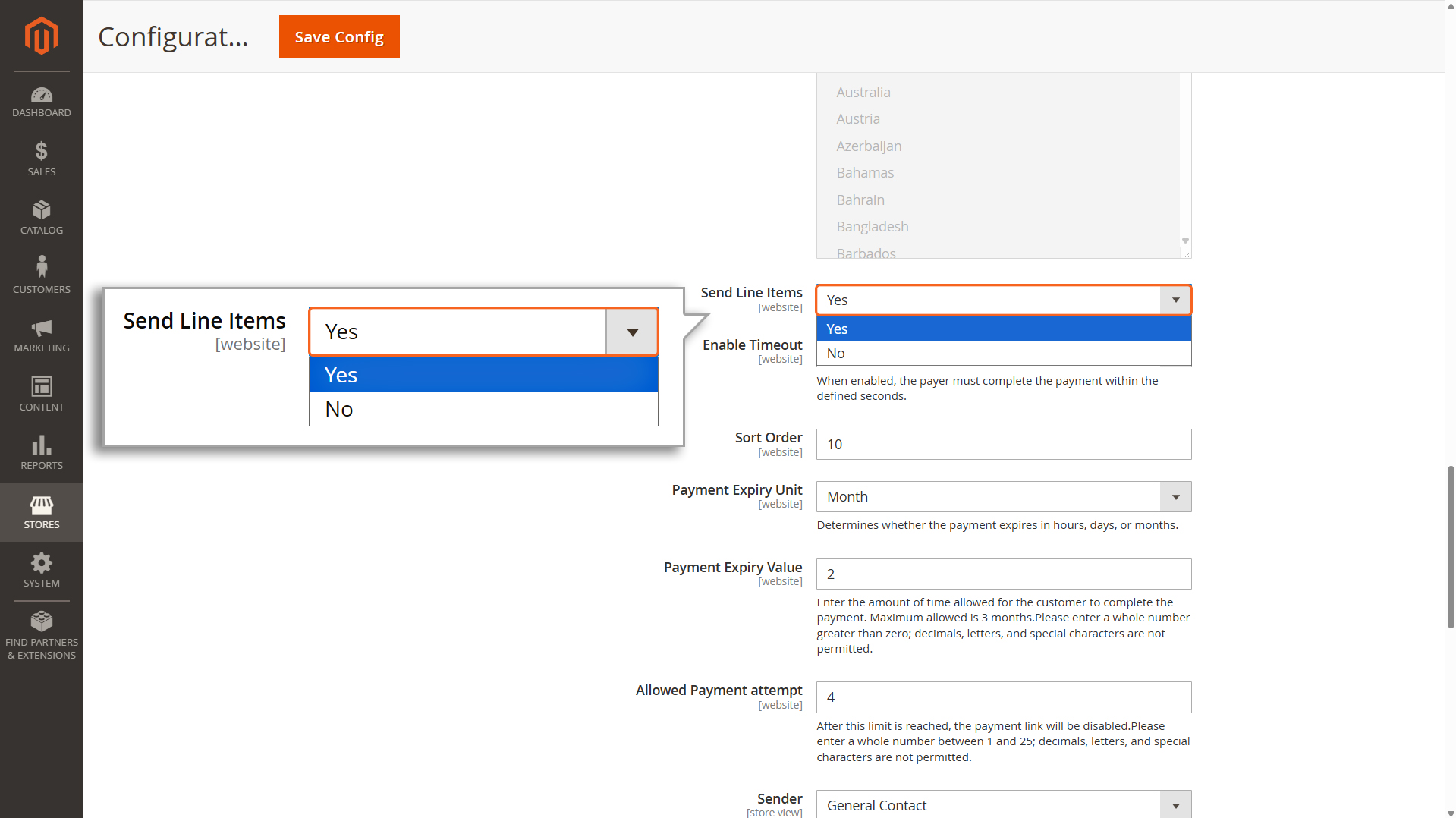
Send Line Items
Send Line Items
Select Yes if you want to include detailed order information (like item names, quantities, and prices) in the transactions sent to the Mastercard Gateway. This helps with tracking and provides more details for reporting.
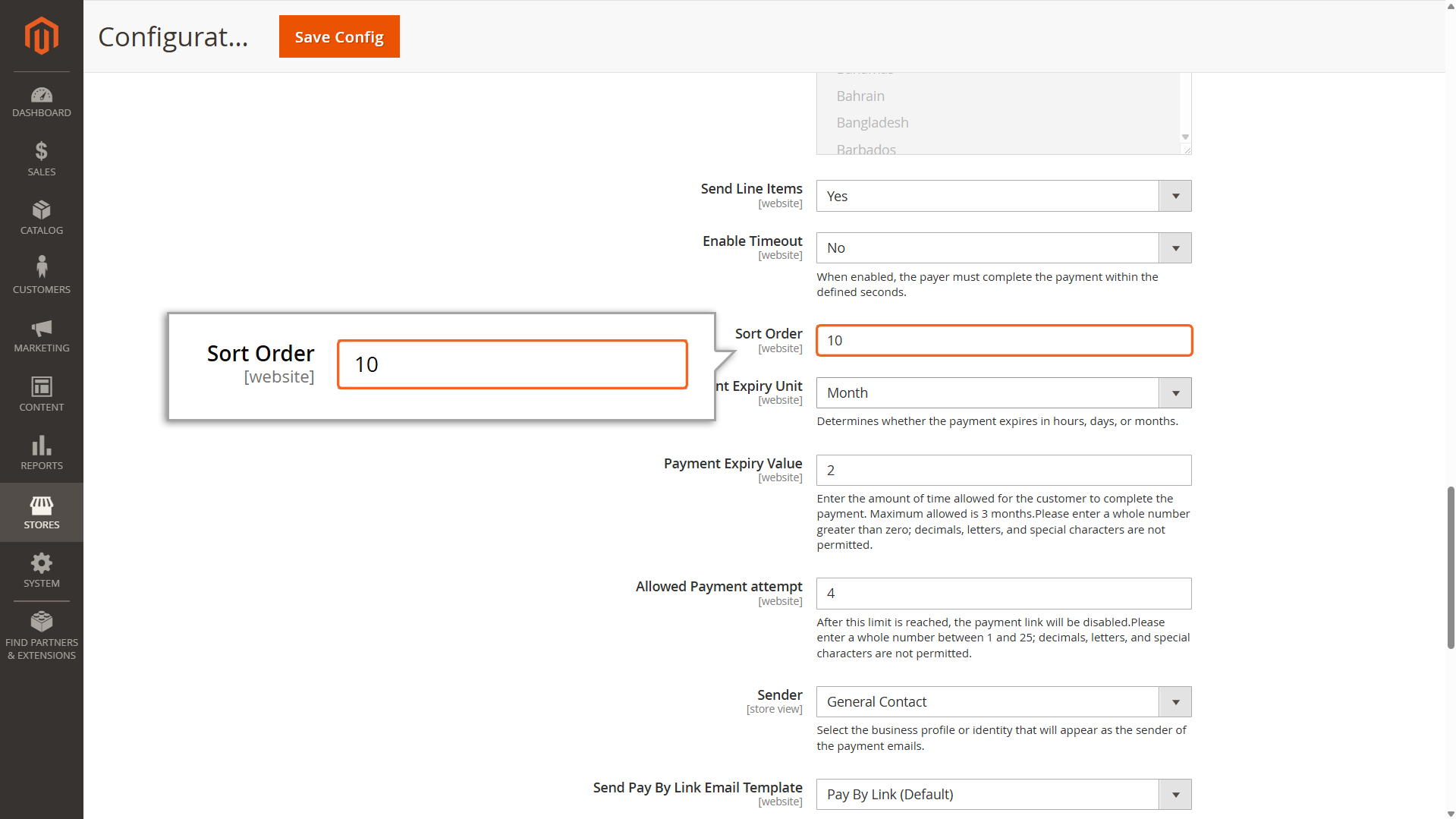
Sort Order
Sort Order
This controls the order in which this payment method appears to customers. A lower number means higher priority (e.g., 0 is the top priority).
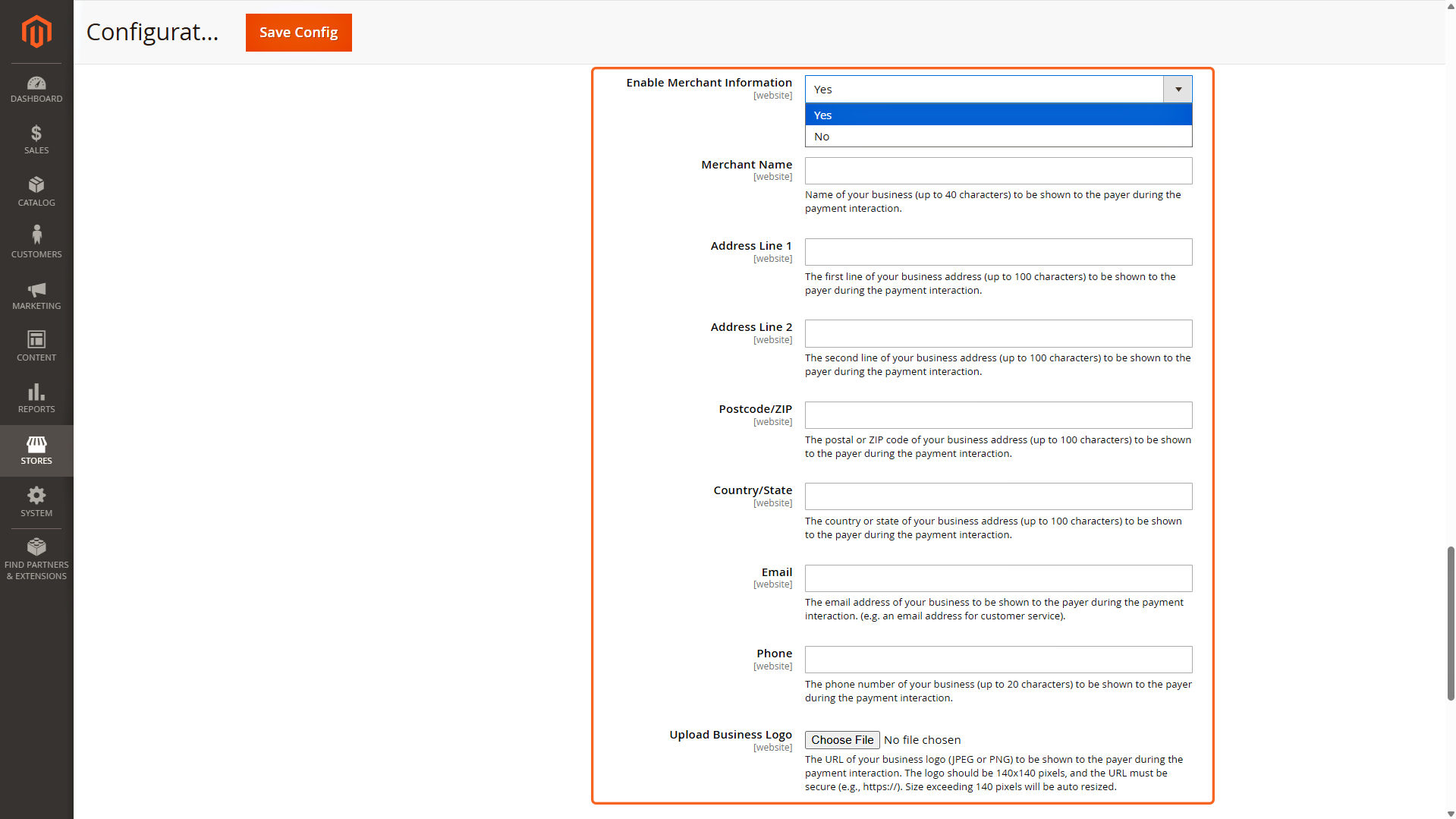
Merchant Information
Merchant Information
This section is displayed only when “Redirect to Payment Page” is selected for Checkout Interaction. Enable Merchant Information to activate the configuration needed for this section as well as display Merchant Information on the redirected payment page.
Merchant Name: Enter your business name (up to 40 characters) to be displayed to the payer during the payment interaction.
Address line 1: Enter the first line of your business address (up to 100 characters) to be displayed to the payer during the payment interaction.
Address line 2: Enter the second line of your business address (up to 100 characters) to be displayed to the payer during the payment interaction.
Postcode/ZIP: Enter the postal or ZIP code of your business address (up to 100 characters) to be displayed to the payer during the payment interaction.
Country/State: Enter the country or state of your business address (up to 100 characters) to be displayed to the payer during the payment interaction.
Email: Enter your business email address to be displayed to the payer during the payment interaction (e.g., a customer service email).
Phone: Enter your business phone number (up to 20 characters) to be displayed to the payer during the payment interaction.
Logo: Provide the URL of your business logo (JPEG, PNG, or SVG) to be displayed to the payer during the payment interaction.
The logo must be 140×140 pixels, and the URL must be secure (e.g., https://).
Logos exceeding 140 pixels will be automatically resized.
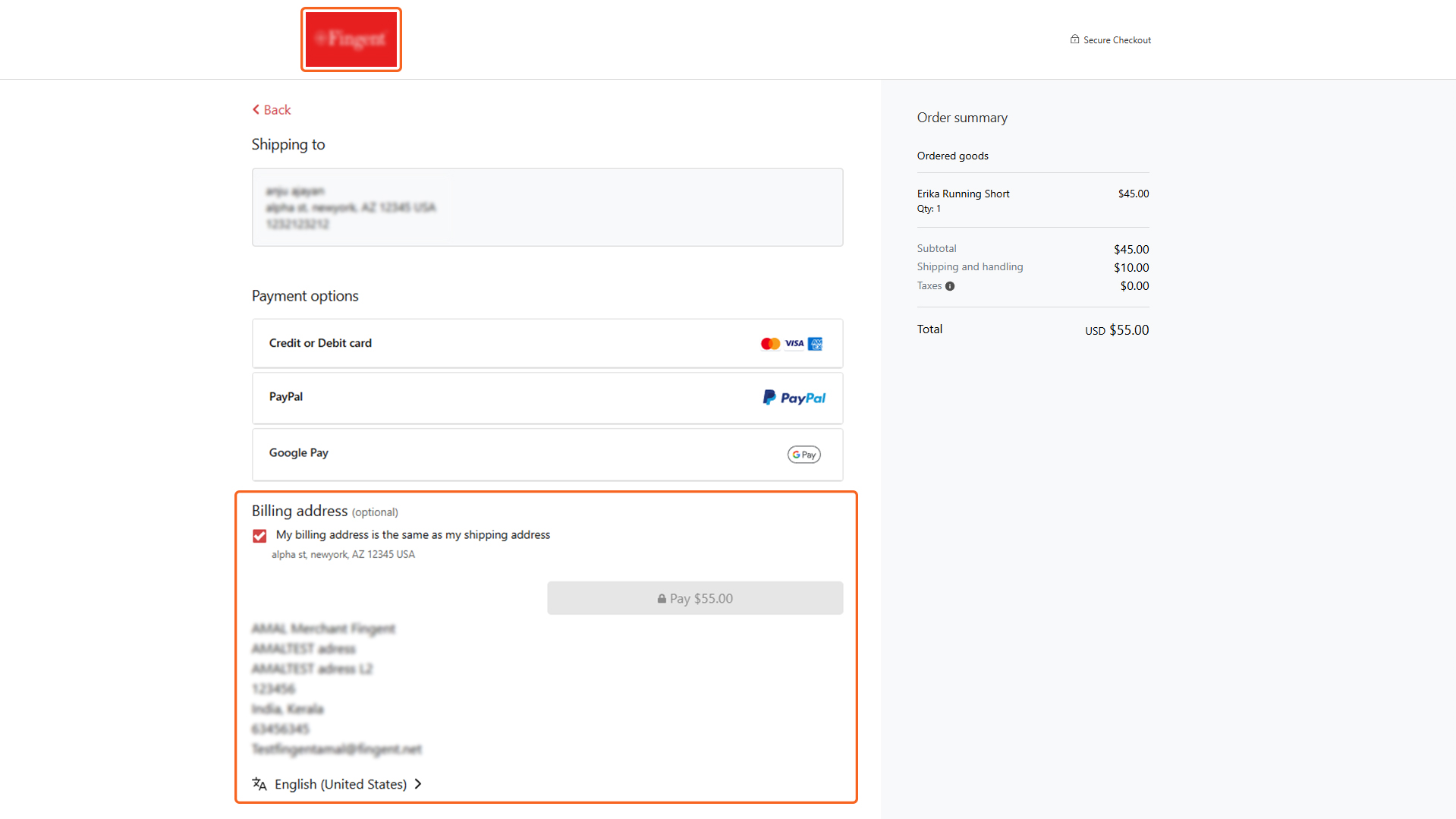
Merchant Information In Checkout
How to Create a Pay Link Order
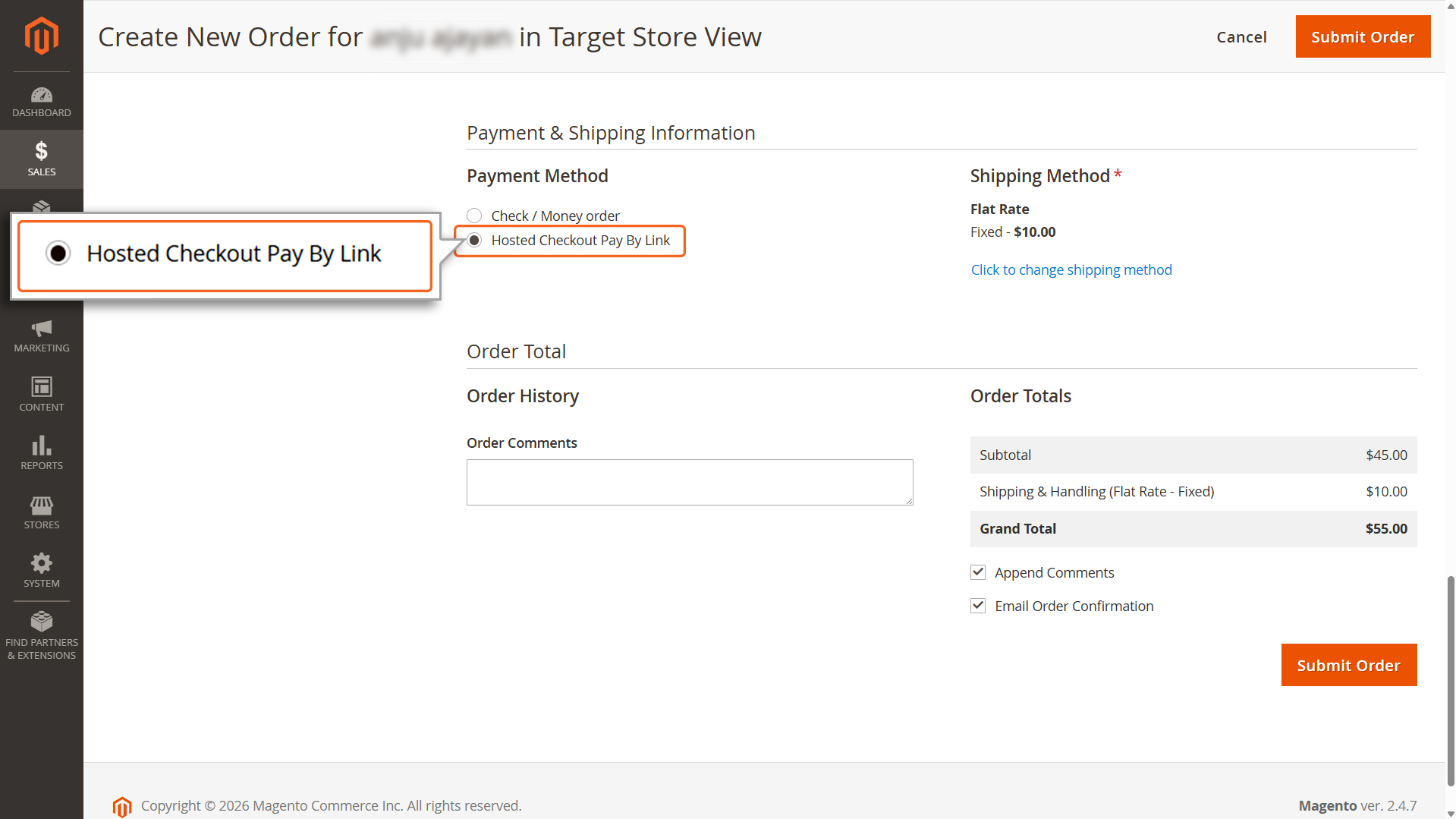
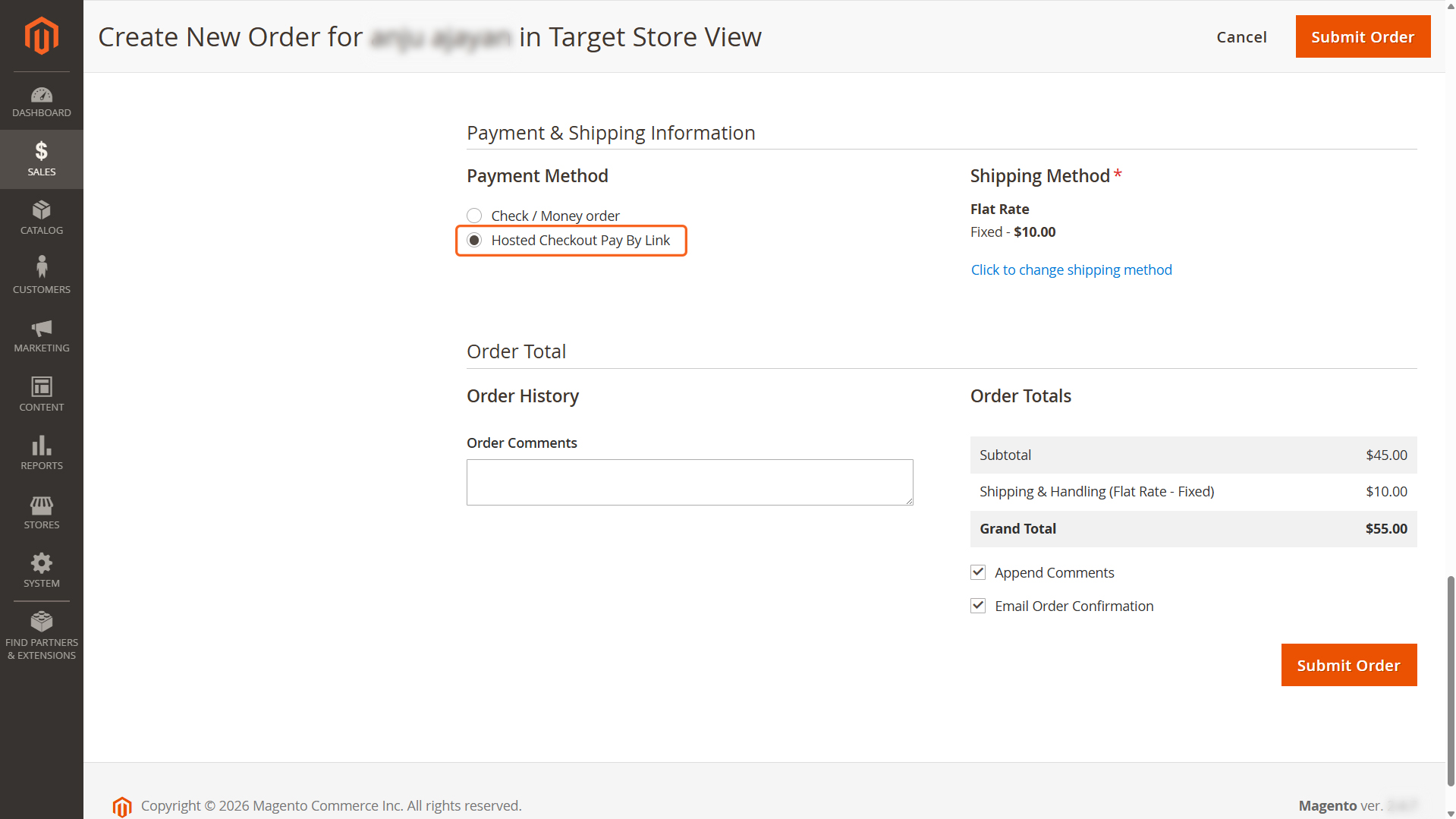
1. Navigate to Order Management: Go to Sales > Orders within the dashboard. 2. Initiate Order: Click Create New Order. Select an existing customer from the database or register a new customer profile. 3. Add Items: Click Add Products, browse the catalog to select the desired items, and confirm by clicking Add Selected Product(s) to Order. 4.Configure Logistics: Enter the required Shipping and Billing addresses and select the appropriate shipping method. 5. Finalize Order: Set the payment method to Pay by Link and submit the order form.
Select Pay by Link as payment method
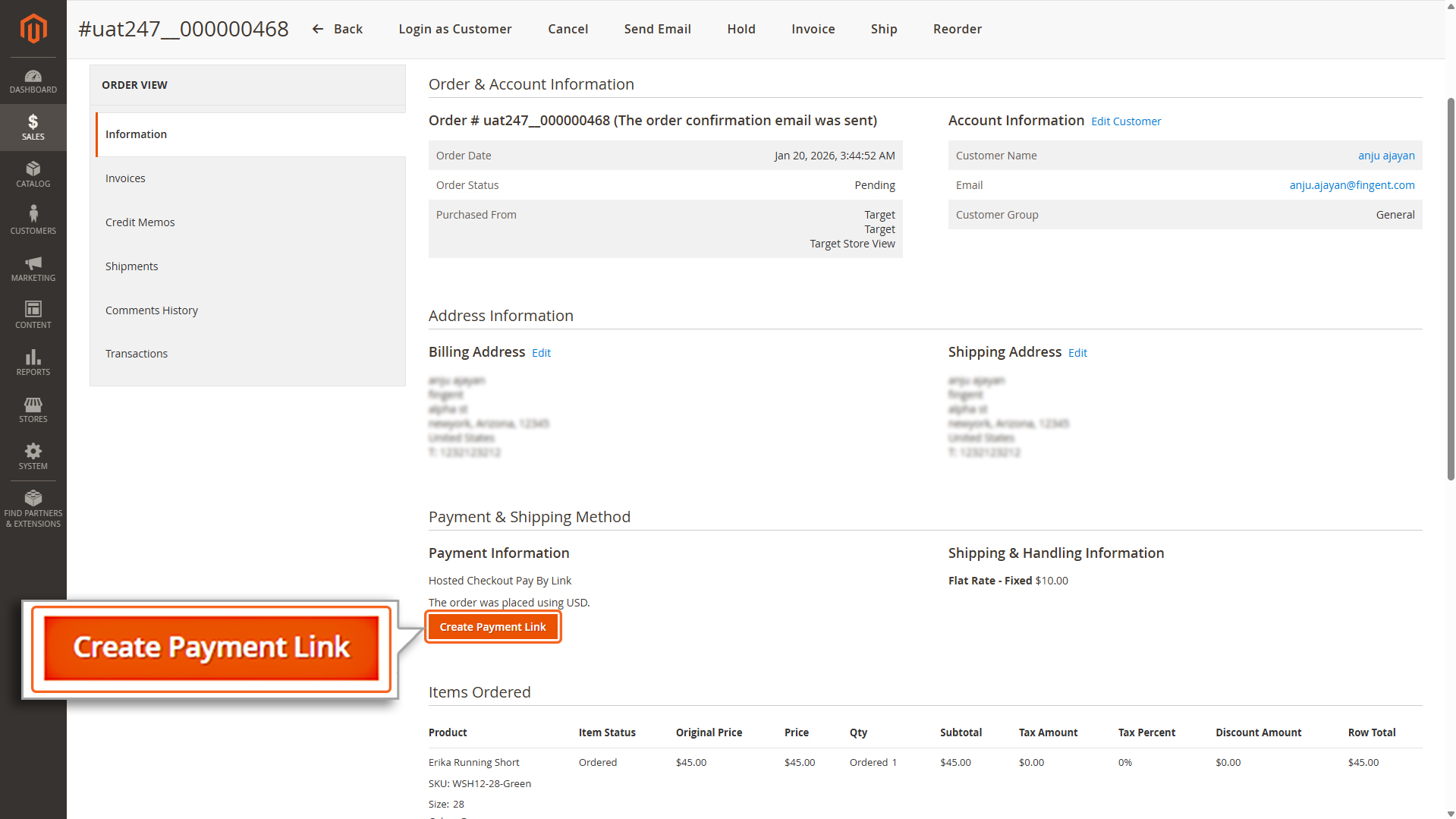
6. Trigger Payment: Click the Create Payment button.
Create Payment Link Button
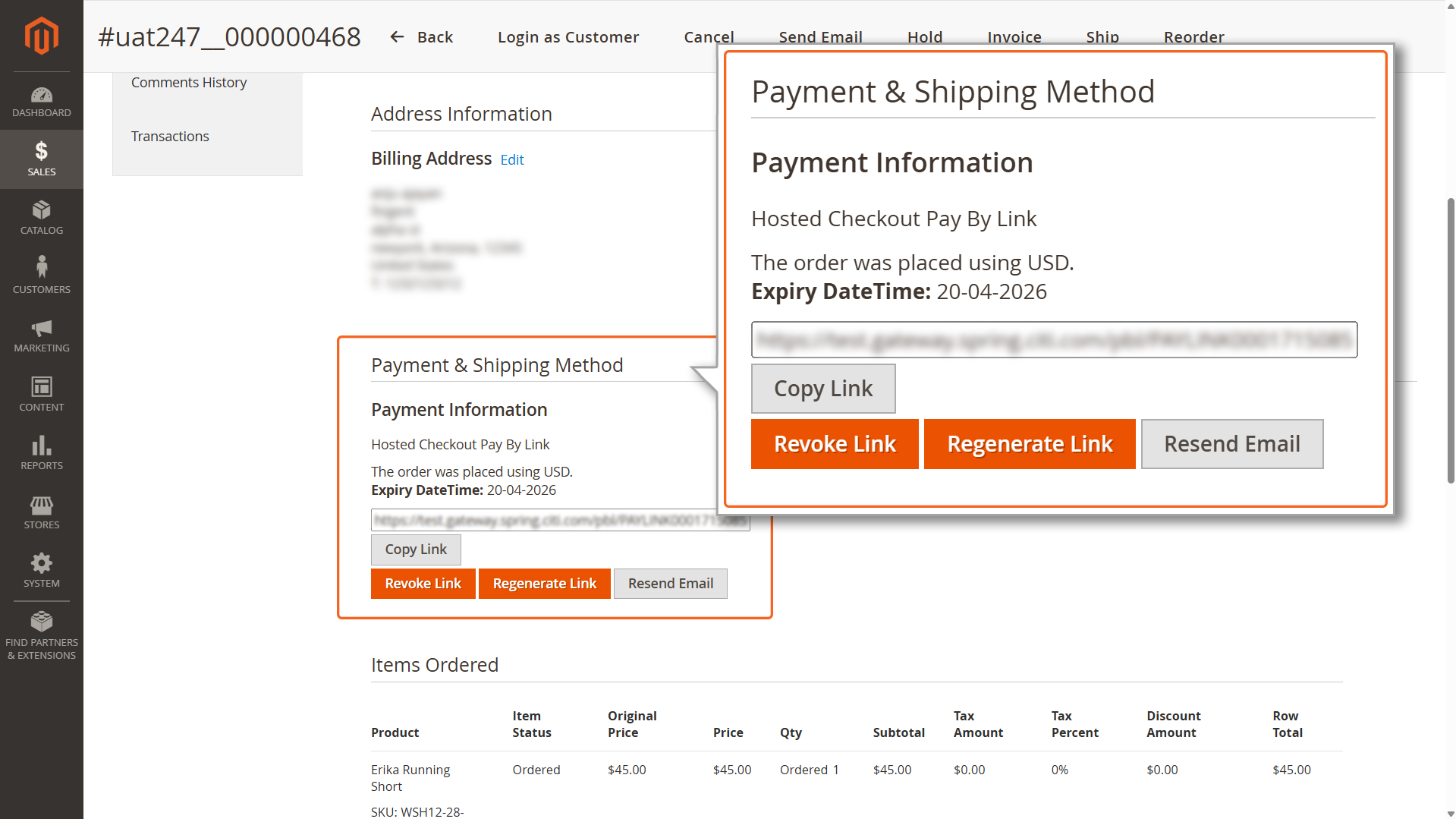
7. System Output: The system will automatically generate a secure payment link and email it to the customer.
Payment Information after payment link generation
Revoke Link: Cancel an active payment link to prevent future use.
Regenerate Link: Create a new payment link if the previous one has expired or is invalid.
Resend Email: Re-deliver the “Pay by Link” email notification to the customer.




![Choose the unit of Payment expiry from dropdown [Hours, Days, or Months]](https://mpgs.fingent.wiki/wp-content/uploads/2026/01/Payment-Expiry-Unit.jpg)