Created date: 03-09-24 | Updated date: 03-07-26 | Plugin version: 1.4.6 | API version: 100
Mastercard Gateway for Magento, OpenCart, PrestaShop and WooCommerce
Payment Method Settings – Hosted Checkout
This section allows you to configure Payment Model options, Checkout Interaction model, and more.
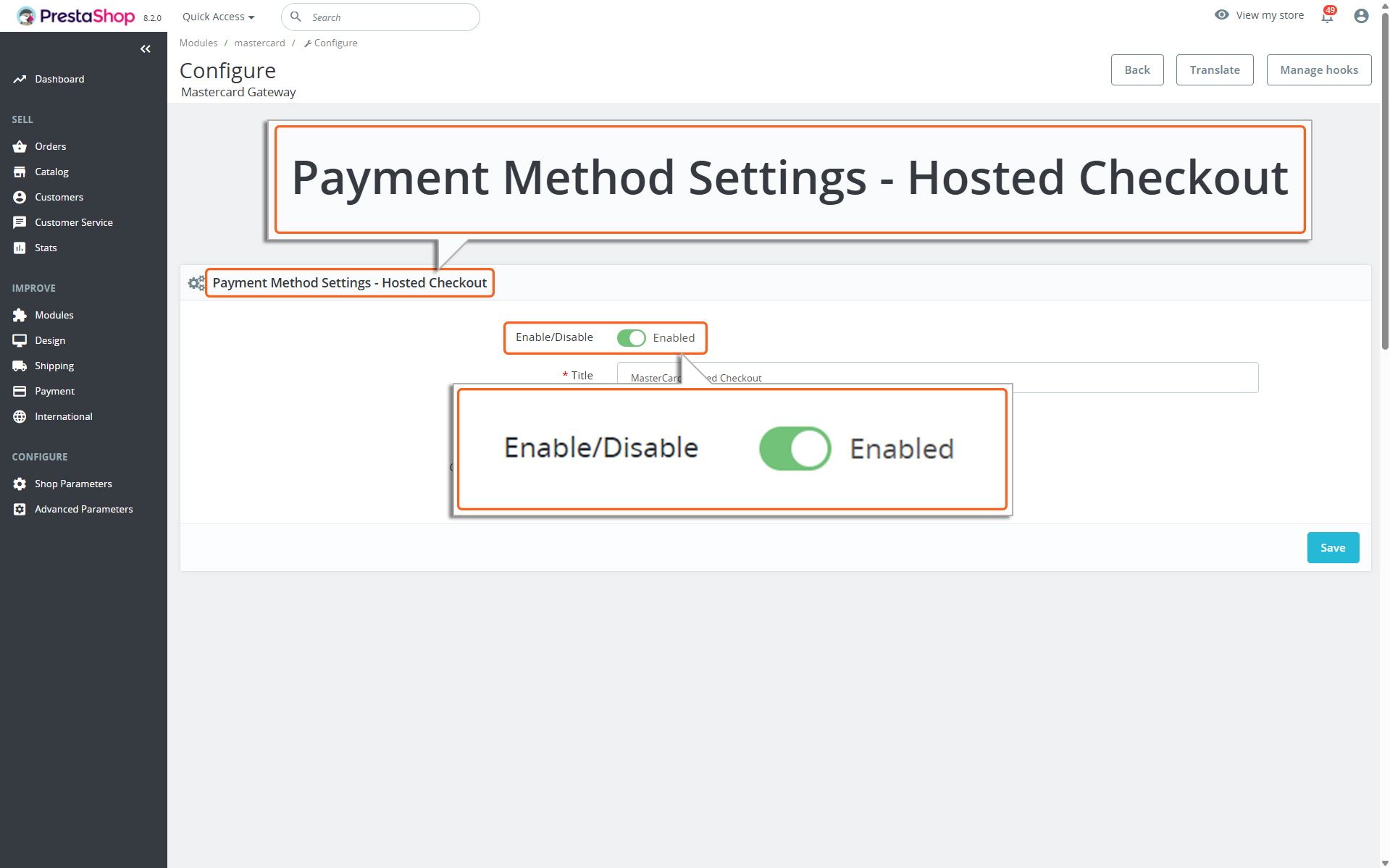
Enabling the “Hosted Checkout”
Enabled
Toggle this button to enable Mastercard Gateway to be used as your PrestaShop payment method. This step activates the configuration needed for this payment option as well as enabling the same in the checkout page.
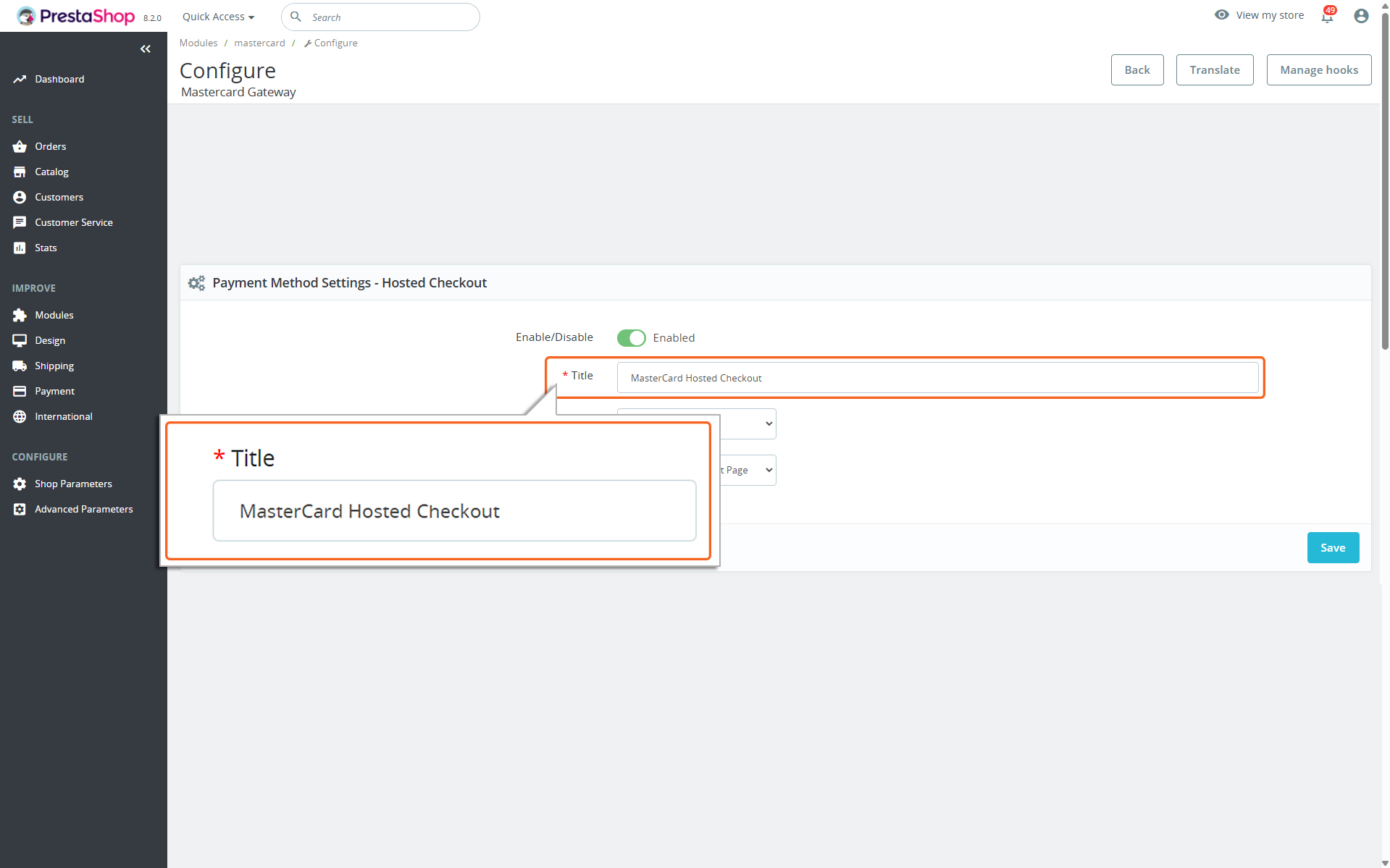
Adding “Title”
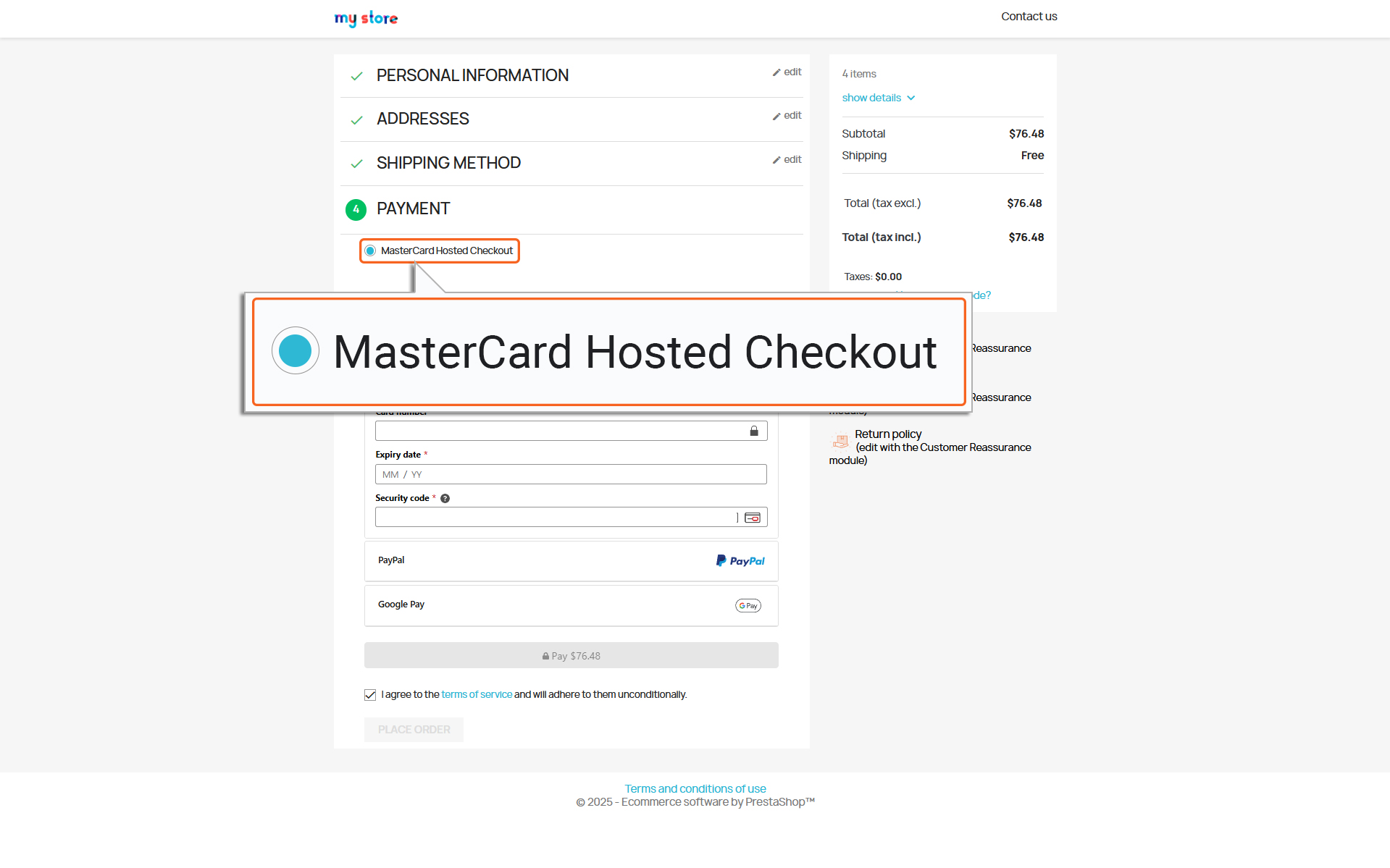
”Title” displayed in Checkout page
Title
Type in a name or label for this payment method. This is what your customers will see on the checkout page when choosing how to pay. Make sure the label is clear and easy to understand.
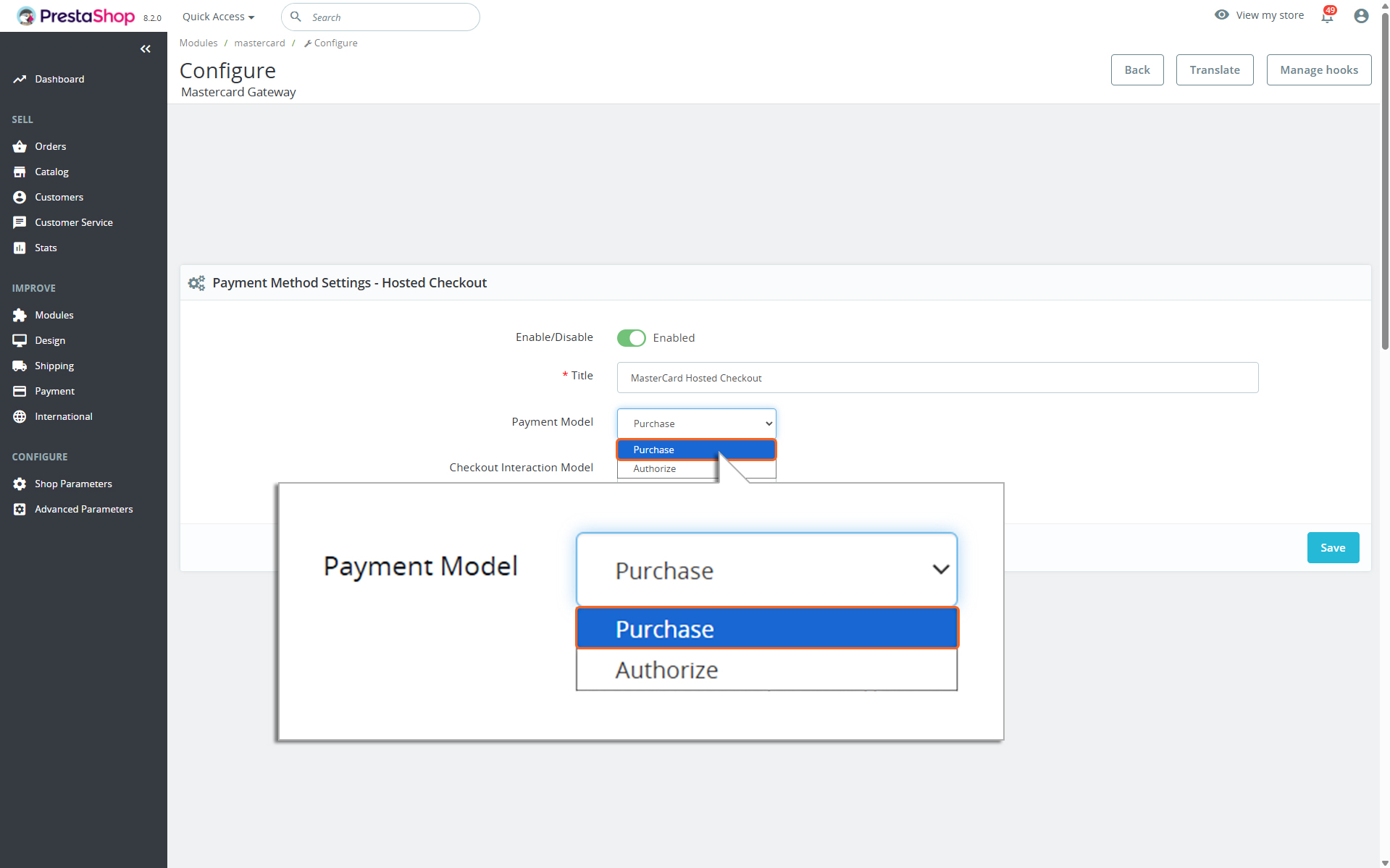
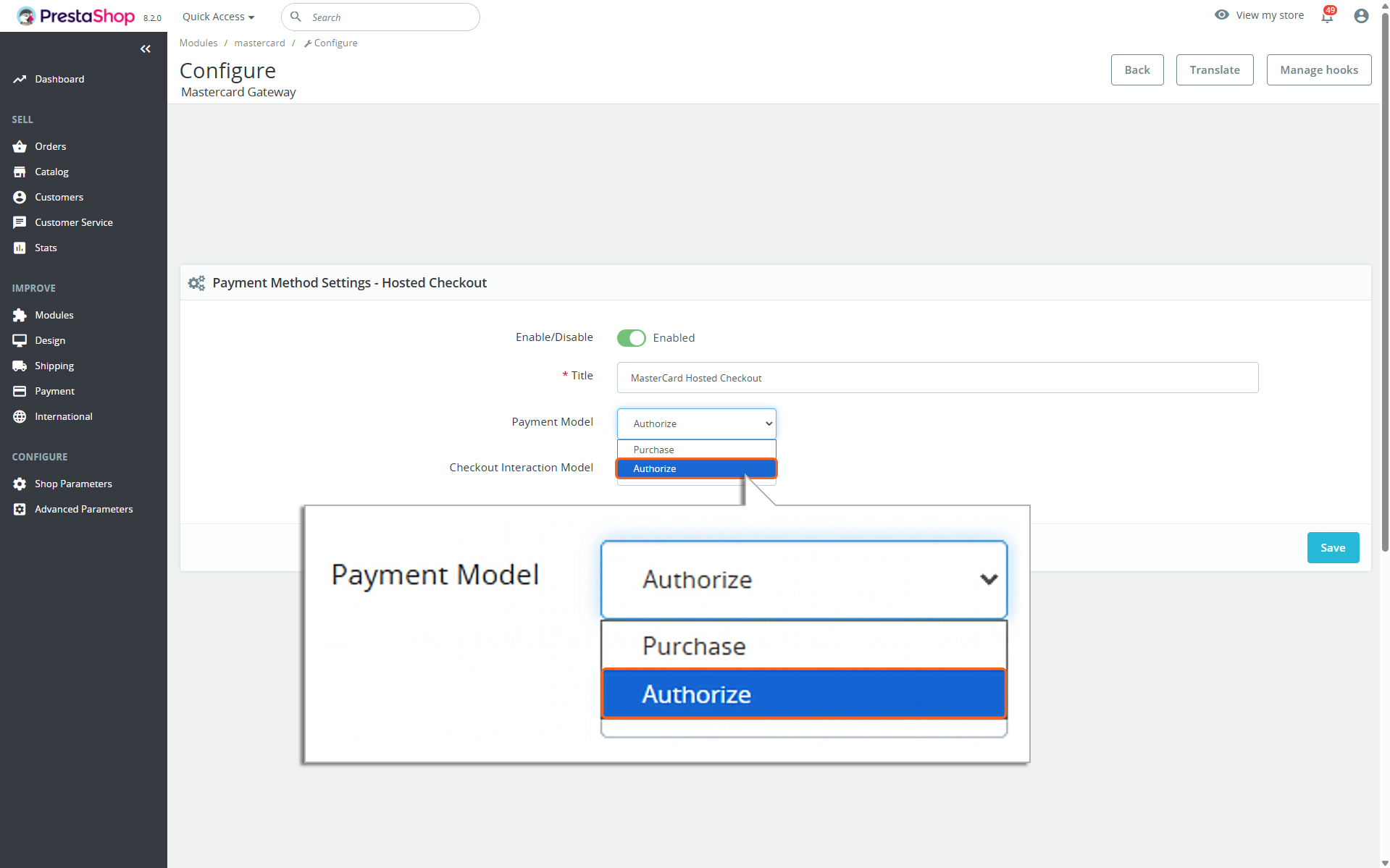
Payment Model
1. Purchase
Payment Model - Purchase
If you choose the ‘Payment Model’ option as Purchase, the payment process will happen automatically. Here’s how it works:
When a user enters their card details and submits an order, the total amount of the order is immediately deducted from their card.
This amount is then automatically transferred to the merchant’s account.
Please note that while the transfer is automatic, it might take a little time for the amount to show up in the merchant’s account. However, no additional action is required from either the user or the merchant to complete the process.
2. Authorize
Payment Model - Authorize
If you choose ‘Payment Model’ as Authorize, you will need to manually process the transaction to accept the payment. This means you must take an additional step to capture the payment amount.
The manual capture of funds is done through the Backend. Detailed instructions for this process can be found in the Online Capture for ‘Authorize’ Transactions section of this document.
The Authorize payment method works in two steps:
Authorization happens during checkout. This ensures the payment method is valid and reserves the funds.
Funds capture happens later. The money is only deducted after the merchant invoices the order.
This method gives you more control but requires you to complete the capture process manually within the stipulated timeframe configured for your MID.
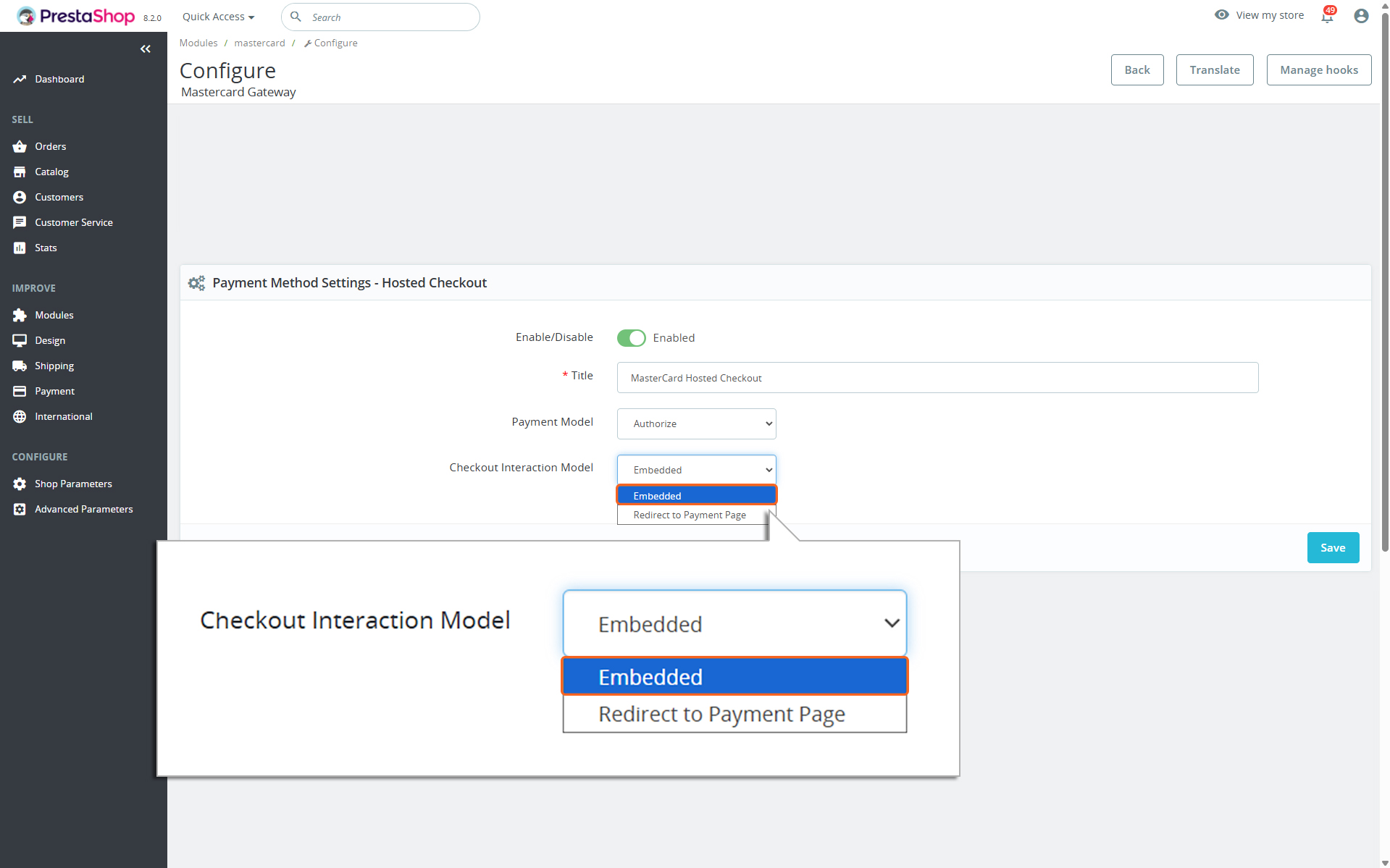
Checkout Interaction Model
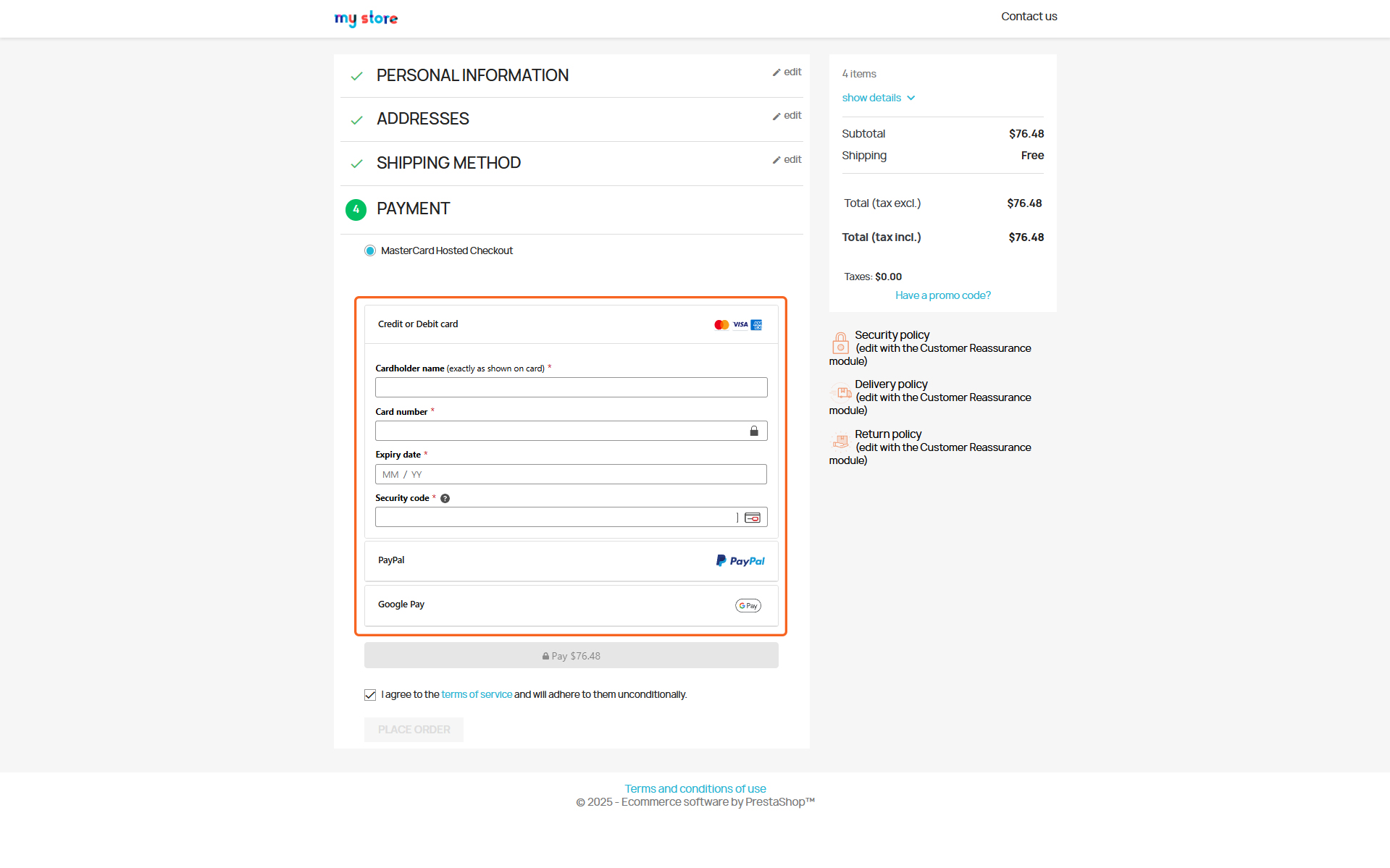
Checkout Interaction Model - Embedded
Embedded Form: Customers enter card details directly on the checkout page.
Embedded Form
Checkout Interaction Model - Redirect to Payment Page
Redirect to Payment Page Form
Redirect to Payment Page: Customers are redirected to a secure Mastercard-hosted page to complete payment. Choosing “Redirect to Payment Page” will enable the Merchant Information section, allowing you to specify the information to be displayed on the redirected page.
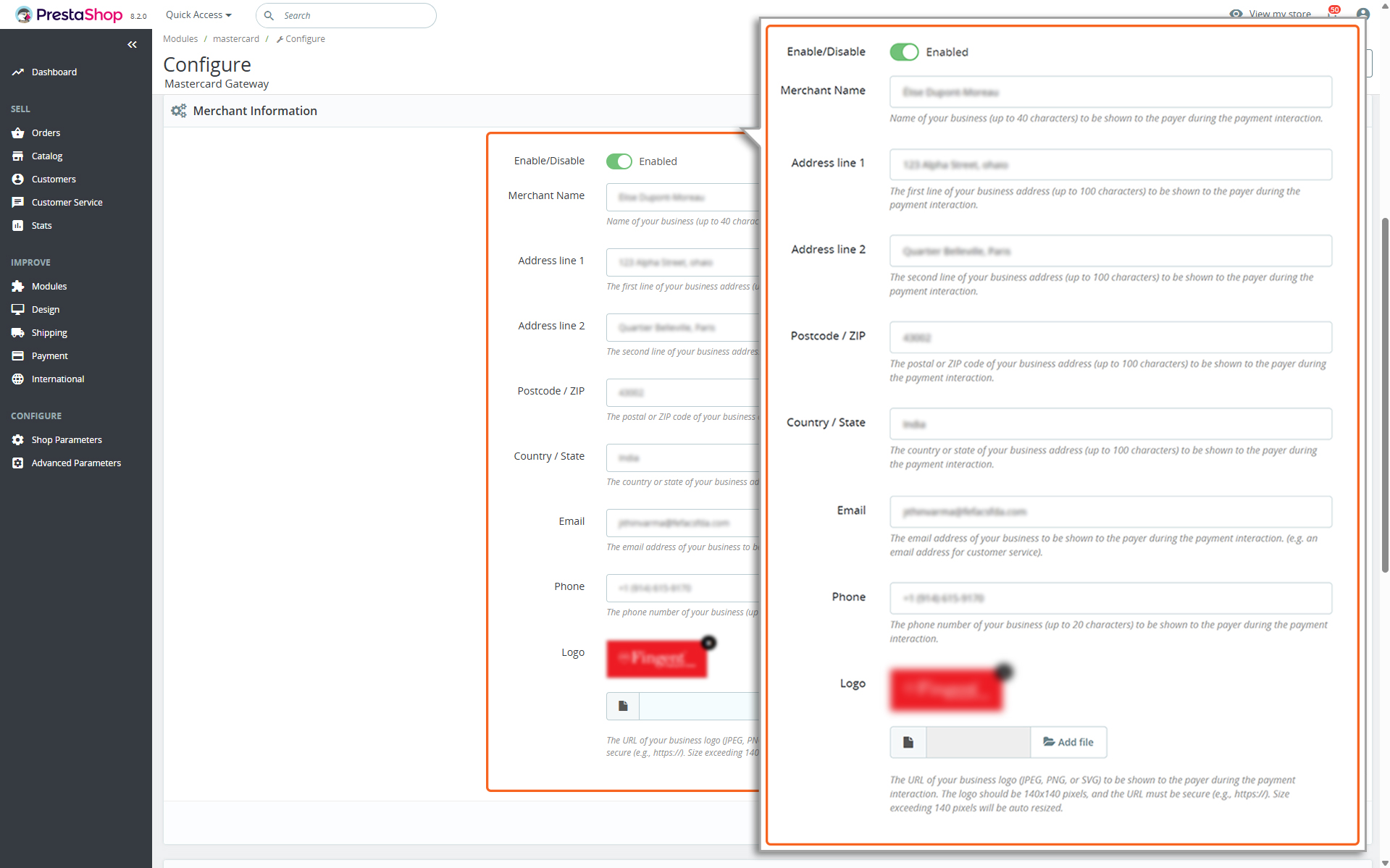
Merchant Information
This section is displayed only when “Redirect to Payment Page” is selected for Checkout Interaction Model. Configuring the fields below allows the details to be shown on the Redirected Payment Page.
Merchant Information
Enable/Disable: Check the ‘Enable’ option to display the below configured details on the Redirected Payment Page.
Merchant Name: Enter your business name (up to 40 characters) to be displayed to the payer during the payment interaction.
Address line 1: Enter the first line of your business address (up to 100 characters) to be displayed to the payer during the payment interaction.
Address line 2: Enter the second line of your business address (up to 100 characters) to be displayed to the payer during the payment interaction.
Postcode/ZIP: Enter the postal or ZIP code of your business address (up to 100 characters) to be displayed to the payer during the payment interaction.
Country/State: Enter the country or state of your business address (up to 100 characters) to be displayed to the payer during the payment interaction.
Email: Enter your business email address to be displayed to the payer during the payment interaction (e.g., a customer service email).
Phone: Enter your business phone number (up to 20 characters) to be displayed to the payer during the payment interaction.
Logo: Upload your business logo (JPEG, PNG, or SVG) to be displayed to the payer during the payment interaction.
The logo must be 140×140 pixels.
Logos exceeding 140 pixels will be automatically resized.