Created date: 16-04-25 | Updated date: 03-07-26 | Plugin version: 1.4.6 | API version: 100
Mastercard Gateway for Magento, OpenCart, PrestaShop and WooCommerce
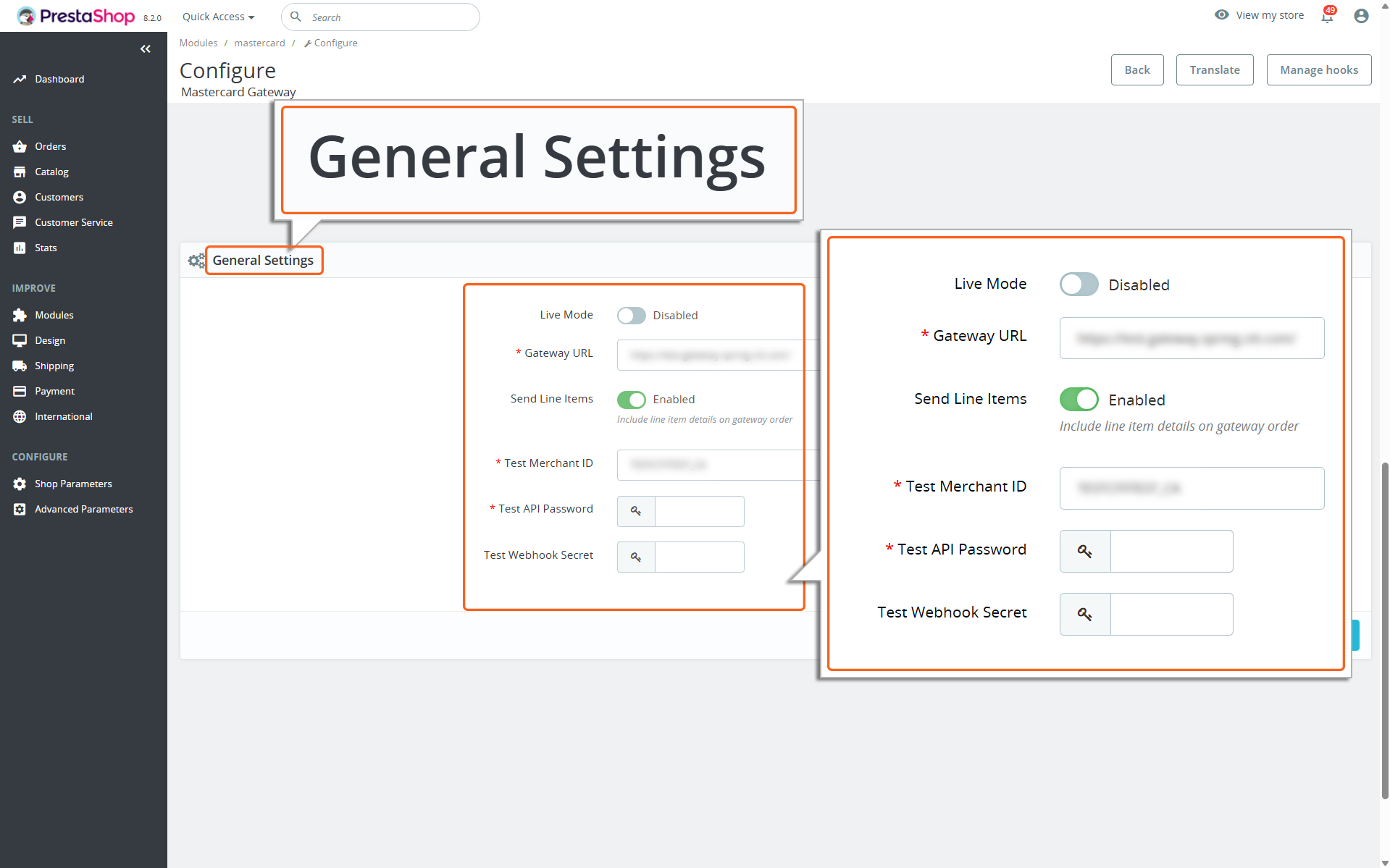
General Settings
Here’s a detailed breakdown of each field in the General Settings section. This will help guide you through the setup process.
Configuring the Gateway details
Live Mode
Toggle this button to switch your Mastercard Gateway service to live production mode.
Disable this mode to use test credentials (API username prefixed with TEST).
Recommendation: Always test in Test mode before switching to Live mode.
Gateway URL
Enter the Gateway URL shared by your payment service provider. Enter the URL with https prefix. For example https://na.gateway.mastercard.com/
Send Line Items
Toggle this button to Enabled if you want to include detailed order information (like item names, quantities, and prices) in the transactions sent to the Mastercard Gateway. This helps with tracking and provides more details for reporting.
Merchant ID
Enter your Live Merchant ID
API Password
Enter the API Password obtained from your merchant account.
Webhook Secret
Enter the Webhook Secret from your merchant account. Please refer to API Configuration to obtain the Webhook Secret.
Note
The plugin automatically includes the Notification URL, so manual configuration in the Merchant Administration portal is not required.
If you have disabled the ‘Live Mode’ option, the fields will be displayed as Test Merchant ID, Test API Password, and Test Webhook Secret.
Test Merchant ID
Enter your Test Merchant ID having TEST prefix
Test API Password
Enter the Test API Password obtained from your merchant account.
Test Webhook Secret
Enter the test Webhook Secret from your merchant account. Please refer to API Configuration to obtain the Webhook Secret.